Sign in with Tolgee (OAuth)
Some apps can use your Tolgee account without an API key. The app sends you to Tolgee in your browser. You log in, read what the app asks for, and click Allow. The app gets a short-lived token. This replaces copying an API key into the app.
Which apps use it?
- Tolgee CLI. Run
tolgee loginwith no arguments and your browser opens. See the CLI docs. - Tolgee Tools browser extension. Sign in from the extension popup to translate in-context on a production site. See in-context translating.
- AI assistants over MCP, such as Claude Code or VS Code. The assistant opens the sign-in when you connect the Tolgee MCP server. See the MCP setup guide.
- Any other app whose developer built the Tolgee sign-in into it.
What the consent screen asks
Every sign-in shows the same screen. Tolgee never skips it, even for an app you approved before.
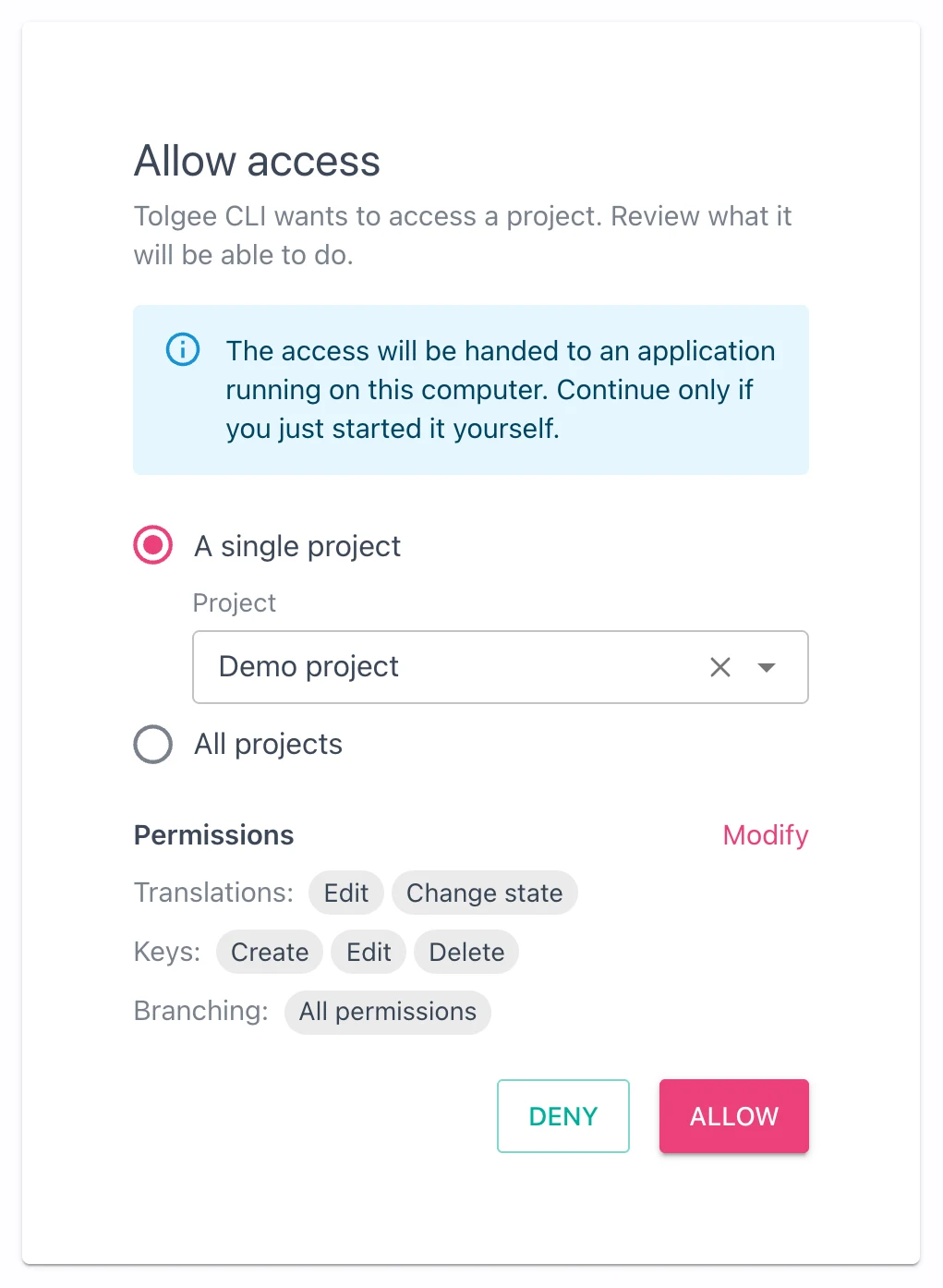
The screen names the app. An app that runs on your own computer, like the CLI, gets the blue note from the screenshot. Tolgee cannot check which program is waiting for the access. Only you know whether you asked for this sign-in.
For an app Tolgee does not know, the screen shows the app's own name, the web address it came from, and this warning:
Tolgee hasn't verified this app. Only continue if you opened this request from an app you trust.
If you did not just start that app yourself, click Deny.
Otherwise you decide two things.
Which project
Pick A single project and choose it from the list, or pick All projects to let the app work in every project you can reach, now and in the future. If the app already asked for a project, it is pre-selected.
Which permissions
Click Modify to untick the ones you do not want to give. An app may stop working if you take away a permission it needs. It then tells you to sign in again.
A permission on the screen only applies where you have it yourself. If you can only read translations in a project, the app can only read them there too. If you lose access to a project, the app loses it at the same moment.
Tolgee may ask for your password before it saves the approval. This is the same check you pass when you create an API key. Signing in with your password counts, so you usually see this at most once per hour.
How long the access lasts
The app gets two things: a short-lived access token and a refresh token.
- The access token is valid for 30 minutes. The app renews it in the background. You do not notice this.
- The renewal stops after 30 days without use. An app you use every week stays signed in. An app you stop using signs itself out after a month.
A self-hosted Tolgee can change these times, see token lifetimes. Ask your administrator if you are not sure.
How to end the access
- Sign out in the app. The Tolgee CLI has
tolgee logout. The browser extension has a sign-out button in its popup. Most AI assistants let you remove or disconnect a server. This ends the access on the Tolgee side too. - Change your password, or turn two-factor authentication on or off. Both end every app sign-in on your account at once, together with every browser session.
There is no list of signed-in apps in your account settings yet. We are working on it as part of session management. Until then, the steps above are the way to end an app's access.
When is sign-in not the right choice?
Sign-in needs a person with a browser on the same machine. Use an API key or a Personal Access Token instead when:
- Nobody is there to click Allow. CI pipelines, build servers, scheduled scripts and containers.
- The machine has no browser. A remote server over SSH, for example.
- The tool only accepts a key. The REST API, the Tolgee CLI before 2.21.0, and some AI clients.
- You need access that lasts until a date you set. A sign-in ends after 30 days without use. A key lasts until its expiry date, or until you delete it.
| Sign in with Tolgee | Project API key | Personal Access Token | |
|---|---|---|---|
| You copy a secret | No | Yes | Yes |
| Needs a browser | Yes, on the same machine | No | No |
| Access ends by itself | After 30 days without use | At the expiry date you set | At the expiry date you set |
| Good for | Your own laptop: CLI, browser extension, AI assistants | Scripts, CI, one project | Scripts that work across projects |
| Where it works | Apps built for it | Everywhere | Everywhere |
Common questions
The screen warns that the app requested a project I can't access. The app told Tolgee which project it wants,
and your account cannot reach that project. The Tolgee browser extension takes the project from the website you are
on. The CLI takes it from the projectId in your .tolgeerc. You can still pick another project and click Allow,
but the app will not work with the project it asked for. Sign in with an account that has access, or ask the project's
team to add you.
I denied by mistake. Start the sign-in again from the app. Nothing was saved.
I left the screen open and Allow did nothing. The request expires after 15 minutes. Start the sign-in again from the app.
My company uses a self-hosted Tolgee. The sign-in works there too, as long as the server is configured for it. If
tolgee login or your AI assistant says the instance does not offer browser login, ask your administrator. The
settings are described in Sign-in for apps on a self-hosted Tolgee.