Manage Glossaries - Translation Terminology
A glossary is a list of important terms in your product with their preferred translations. It helps translators and machine translation tools to know exactly how certain words should be used so everything stays consistent across languages. This prevents mistakes, avoids confusion, and makes your translations look professional. You can create glossaries at the organization level and assign them to projects.
Glossaries are available in advanced plans. Upgrade your plan to use this feature.
If you use the self-hosted version, you must set up the license to use this feature.
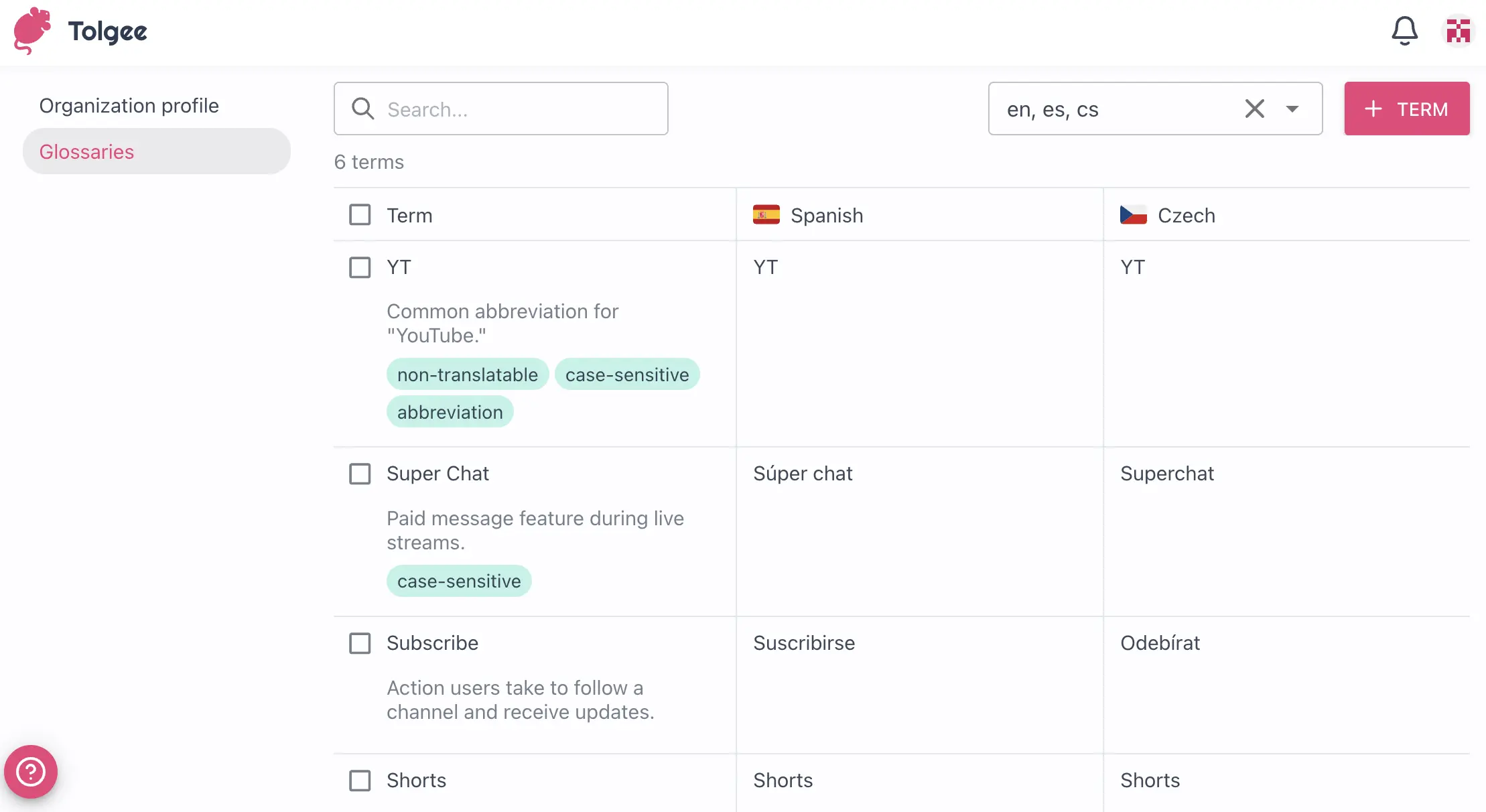
Glossaries can be called differently in other Translation Management Systems (TMS) or localization workflows.
To clarify, we use the term "Glossary" as it best describes the features we provide. The base functionality of a Glossary on Tolgee is a list of key terms and their preferred translations with some additional tags for special cases like abbreviations and foribdden terms.
Other names for similar features include: termbase (or Term Base / TB), which can also contain data like usage and status, and terminology database / terminology management system / terminology repository / terminology list, which is a more generic term that often includes not only translations but also guidelines for how certain words should be used within an organization.
Get Started with Glossaries (Termbase)
This section describes how to work with glossaries and the terms in them. Translation glossary helps with terminology management by keeping it consistent and standardized. This provides brand consistency by keeping track of non-translatable terms, case-sensitive terms, abbreviations and so on.
Access Organization Glossaries
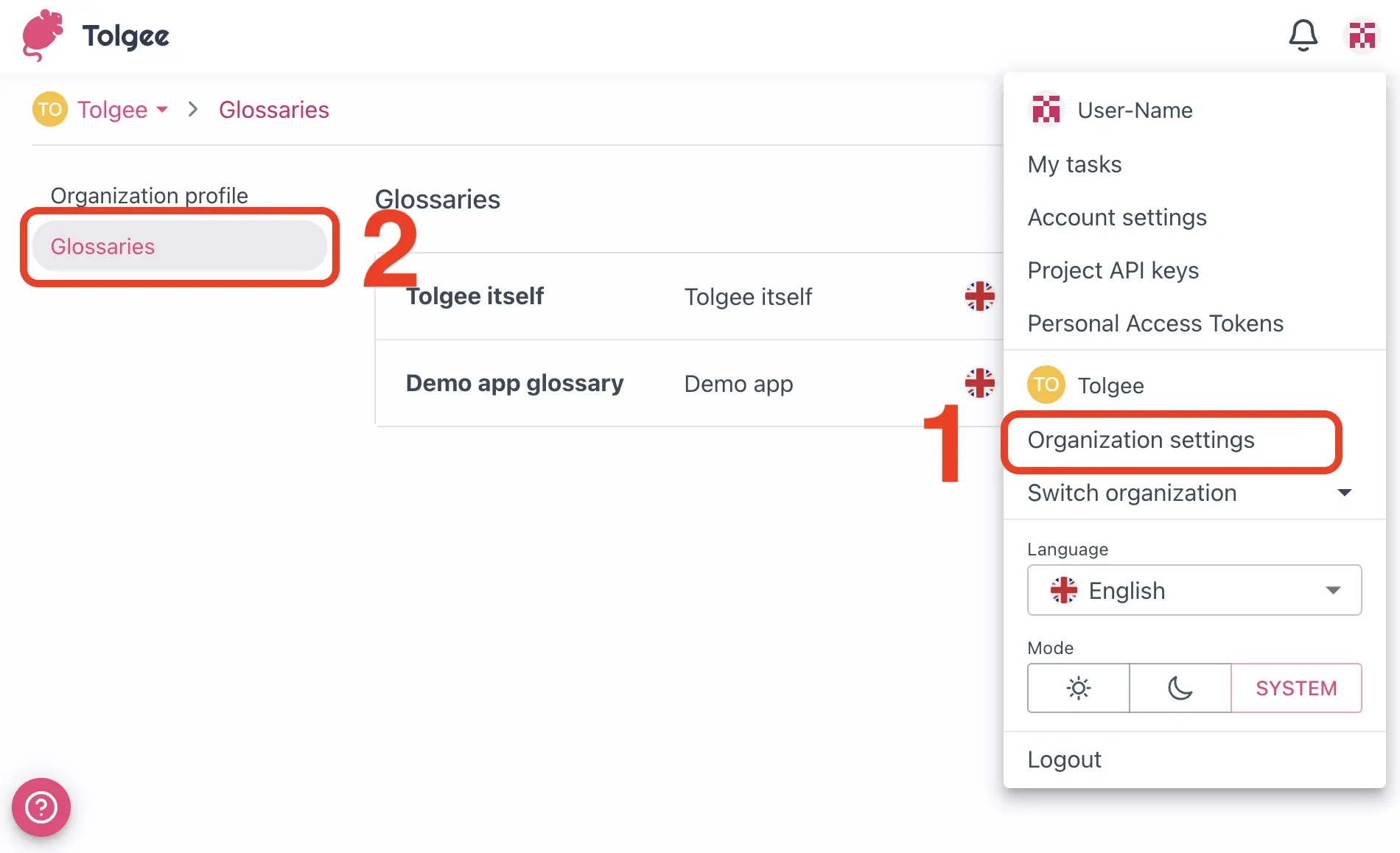
To see a list of glossaries in your organization, follow the steps below:
- Go to Organization settings
- Select Glossaries in the side menu
It is important to note that a user can see all glossaries if they have access to any project within the organization.
The user can add a glossary and edit it if the access is set to at least a maintainer. You can edit the user's project access in the Organization members tab.
Create a New Glossary
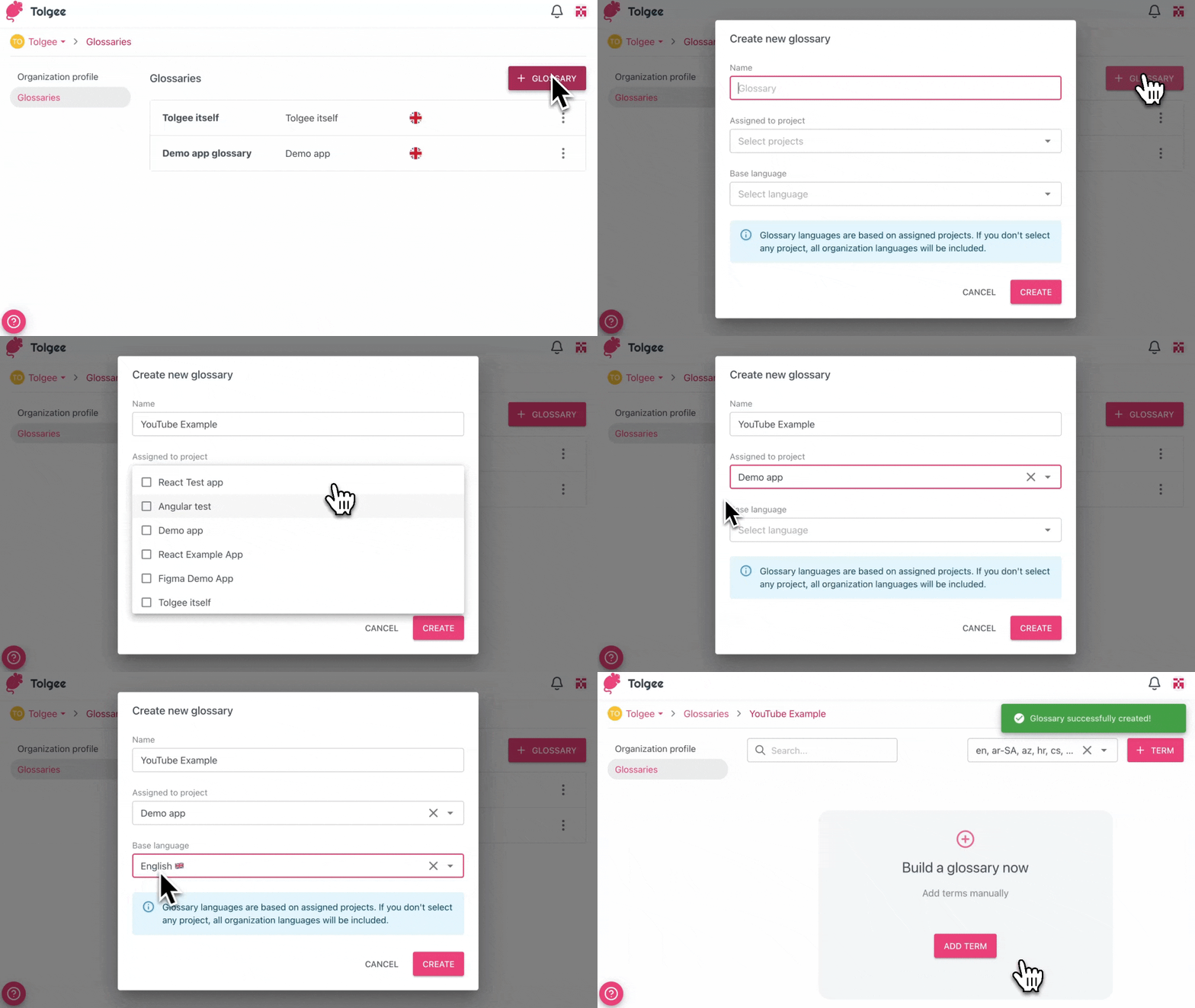
Creating a glossary lets you add terms to ensure consistent translations across one or multiple projects. To create a new glossary in your organization and add it to a project, follow the steps below:
- Click the
+ Glossarybutton to open the dialog window to create the glossary - Enter a name for the glossary
- Assign the glossary to projects (it is optional but essential for working with glossaries properly)
- Select a base language
- Click
Create - Next, you can add the terms with "+ Term" button
The base language and the glossary languages are derived from the projects that were assigned to the glossary. The languages can be added to the project themselves, and then they will be automatically assigned.
Add Terms to a Glossary
You can import terms or add them manually:
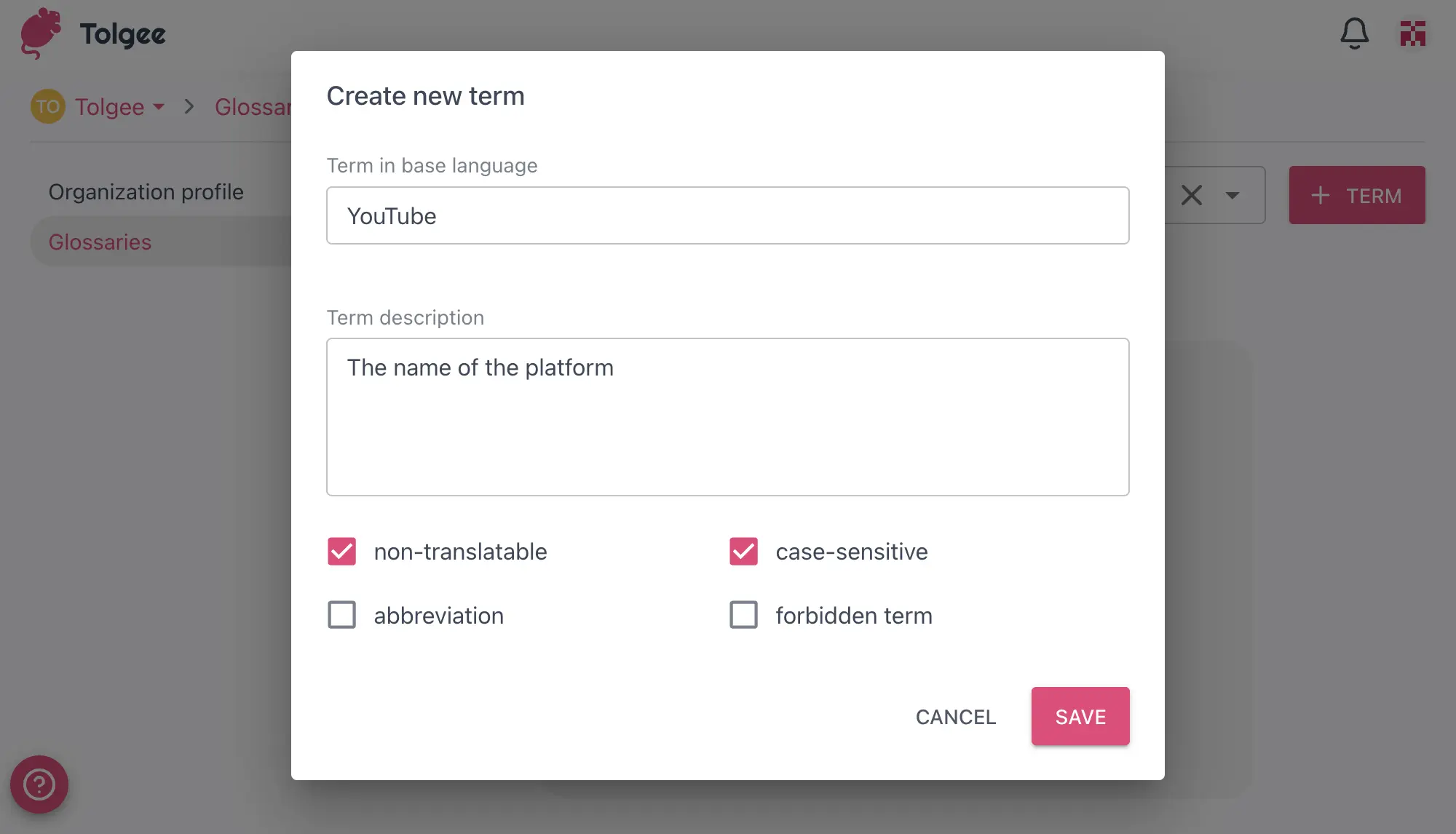
- In the glossary detail view, click the
+ Termbutton - Enter the term text
- Add a description
- Tick the checkboxes as needed to add the tags:
- Non-translatable: Indicates that the term should not be translated (in this case, you will not be able to click on the translations in the glossary)
- Case-sensitive: Indicates that the term's case should be preserved
- Abbreviation: Indicates that the term is an abbreviation
- Forbidden term: Indicates that the term should not be used
- Click
Save
Edit a Glossary
Editing a glossary is useful if you want to assign it to a different project or change its name and base language.
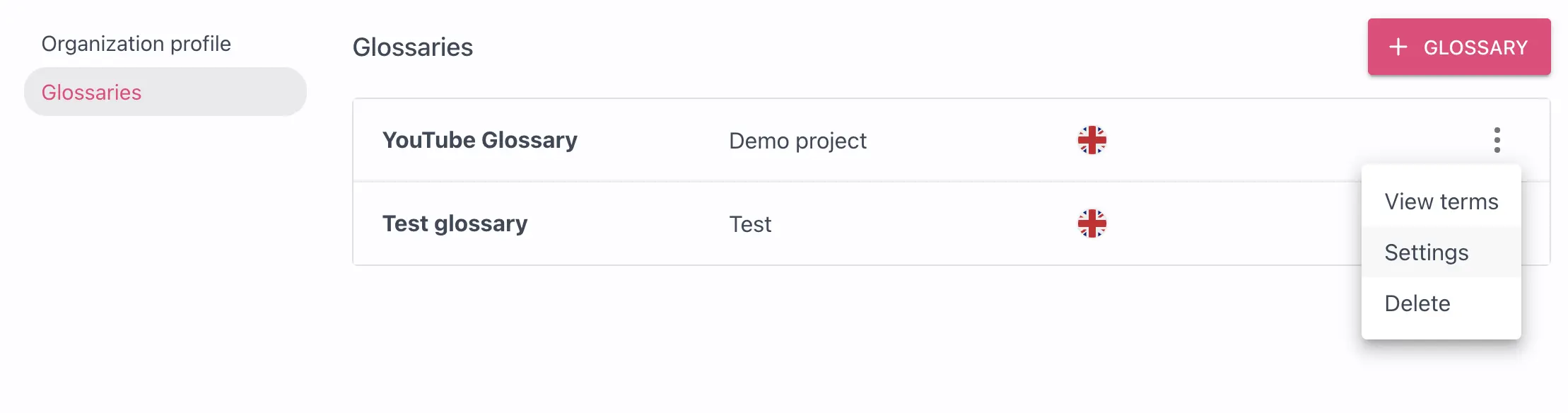
- Open the tab Glossaries in Organization settings.
- Click on three dots
- Go to Settings.
Here you can edit the parameters of your glossary that you have set when creating it.
Assign Glossary to a Project or Multiple Projects
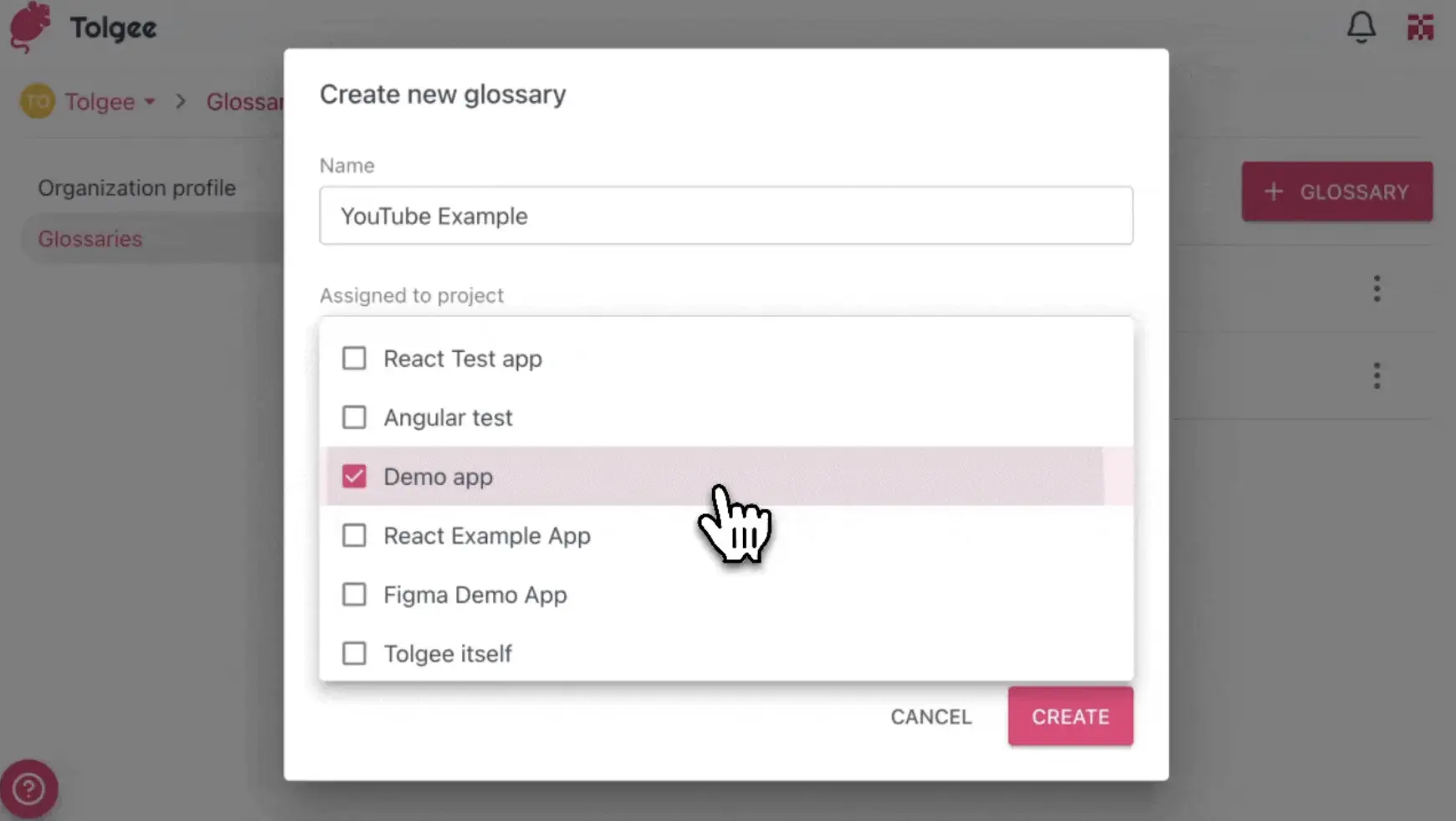
When creating a glossary, you can assign (connect) it to one or multiple projects by selecting the checkmarks.
If you are working with an existing glossary, go to the edit menu of the glossary and select the checkmarks for the projects you want to assign it to.
To disconnect a glossary from a project, follow the same steps and simply remove the checkmark.
View a Glossary
First, follow the steps to access organization glossaries. To see the terms of your glossary, click on the glossary you want in the list of all glossaries, and then you will be able to view the glossary terms.
From here, you can:
- Add new terms
- Edit existing terms
- Translate existing terms
- Delete terms
- Search for terms
To edit or add a term translation, click on the cell in the desired language column.
To edit a term or its details like the tags or the description, click on the term cell in its base language column (the first column).
Import or Export Glossary Terms
You can import glossary terms from a CSV file to quickly build or update your terminology database. You can also export any glossary as a CSV file for external editing, sharing, or backup. Learn how to do that in the Import and Export Terms to a Glossary section.