Glossary Terms Actions
This page explains how you can edit, translate, and delete glossary terms in the Tolgee UI, including how to manage multiple terms at once.
Edit Glossary Term
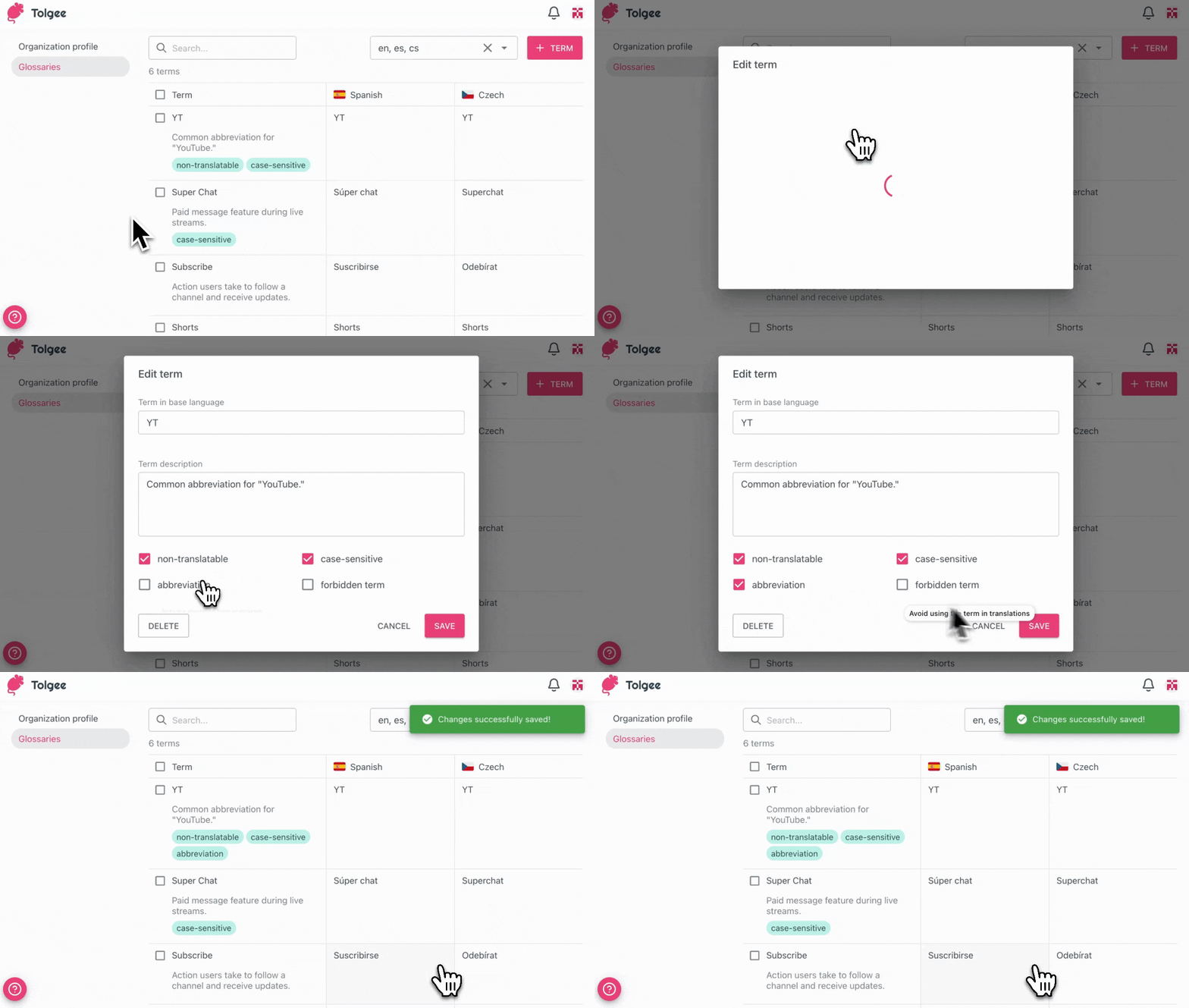
You can edit a glossary term when you need to update its base language value, description, or tags. You do this from the Glossaries tab by opening the term details.
- Open the details of the term by clicking on the first column
- Update the term details
- Click
Save
Translate Glossary Term
Translating glossary terms ensures they are correctly localized when using both human and machine translation.
Glossary languages are based on assigned projects. If you don't select any project, all organization languages will be included.
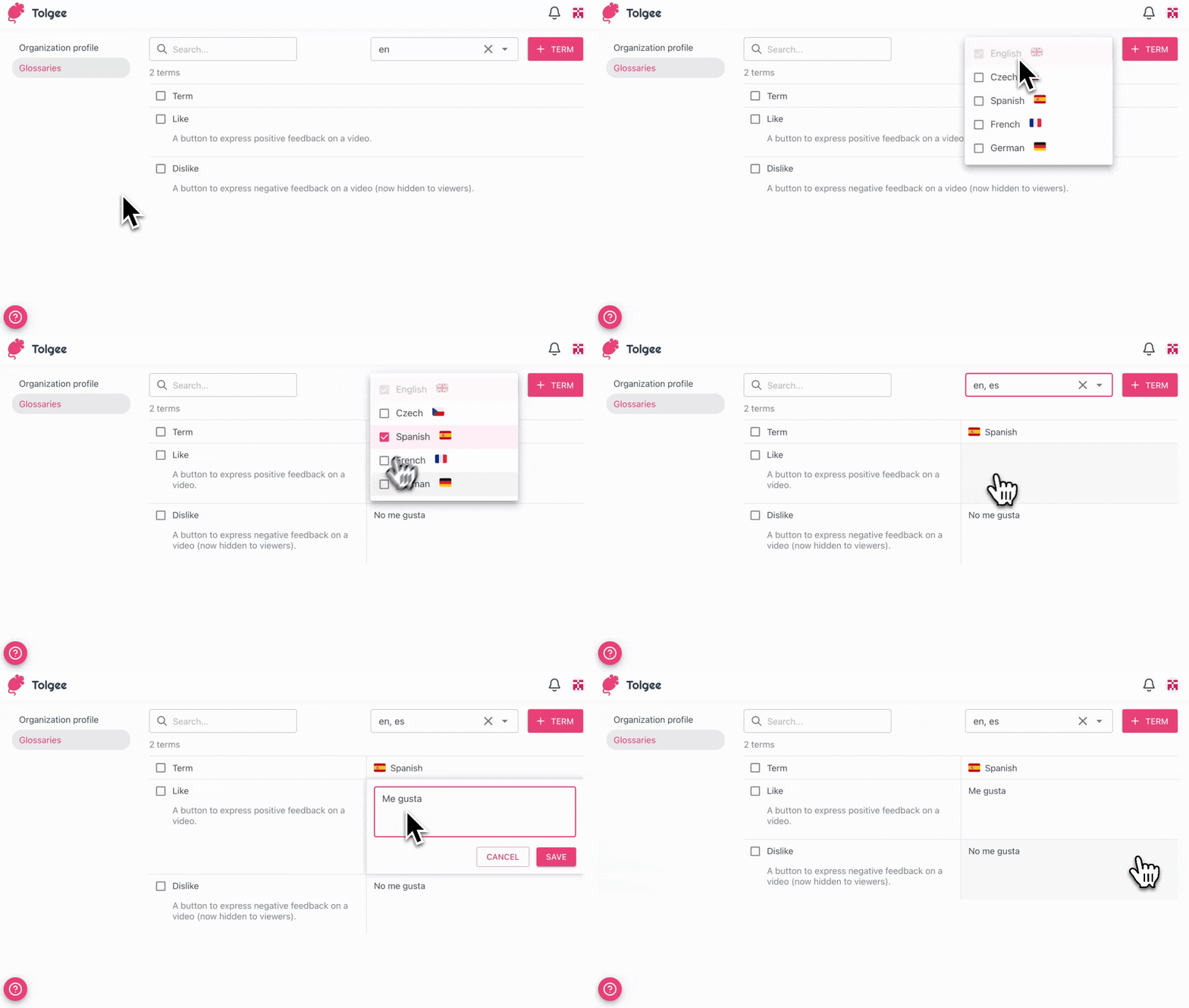
To translate glossary terms:
- Add the desired language to the list of languages in the top right corner next to the
+ Termbutton - Click on the translation cell for the desired language
- Enter the translation for the term
- Click
Save
This will not work if the base language term has a "Non-translatable" tag as it will stay the same in all languages.
Delete Glossary Term and Bulk Delete
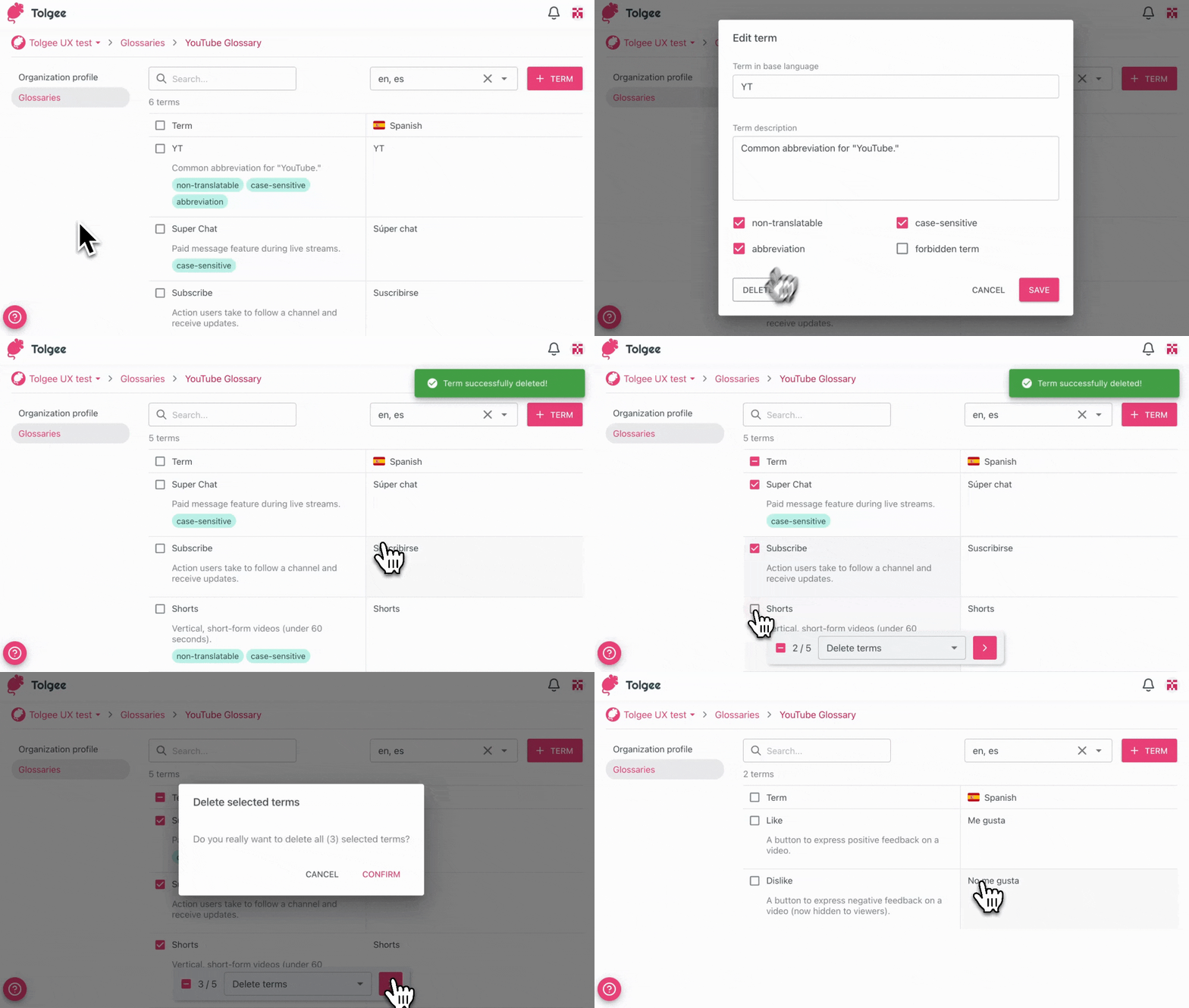
If the term is not needed or was added by mistake, it can be deleted by following these steps:
- Click on the first column of the term
- Click
Delete - Confirm the deletion
You can also delete multiple glossary terms at once using bulk selection.
- Click on the checkboxes of the desired terms
- Select the action at the bottom of the screen
- Click the arrow button
- Confirm the action
Next Steps
After setting up the terms, you can start to use the glossary. Read more about how to use glossaries in the translation process in Glossaries in Translations View.