Import and Export Terms to a Glossary
Importing and exporting glossary terms helps you manage terminology at scale and keep your projects consistent. This page explains how to upload terms from a CSV file or download an existing glossary for external use. Basic glossary term actions, such as editing and deleting terms, are documented on the Glossary Terms Actions page.
Import Glossary Terms from a CSV File
Uploading glossary terms helps speed up your work if you already have a term base or are migrating from a different platform.
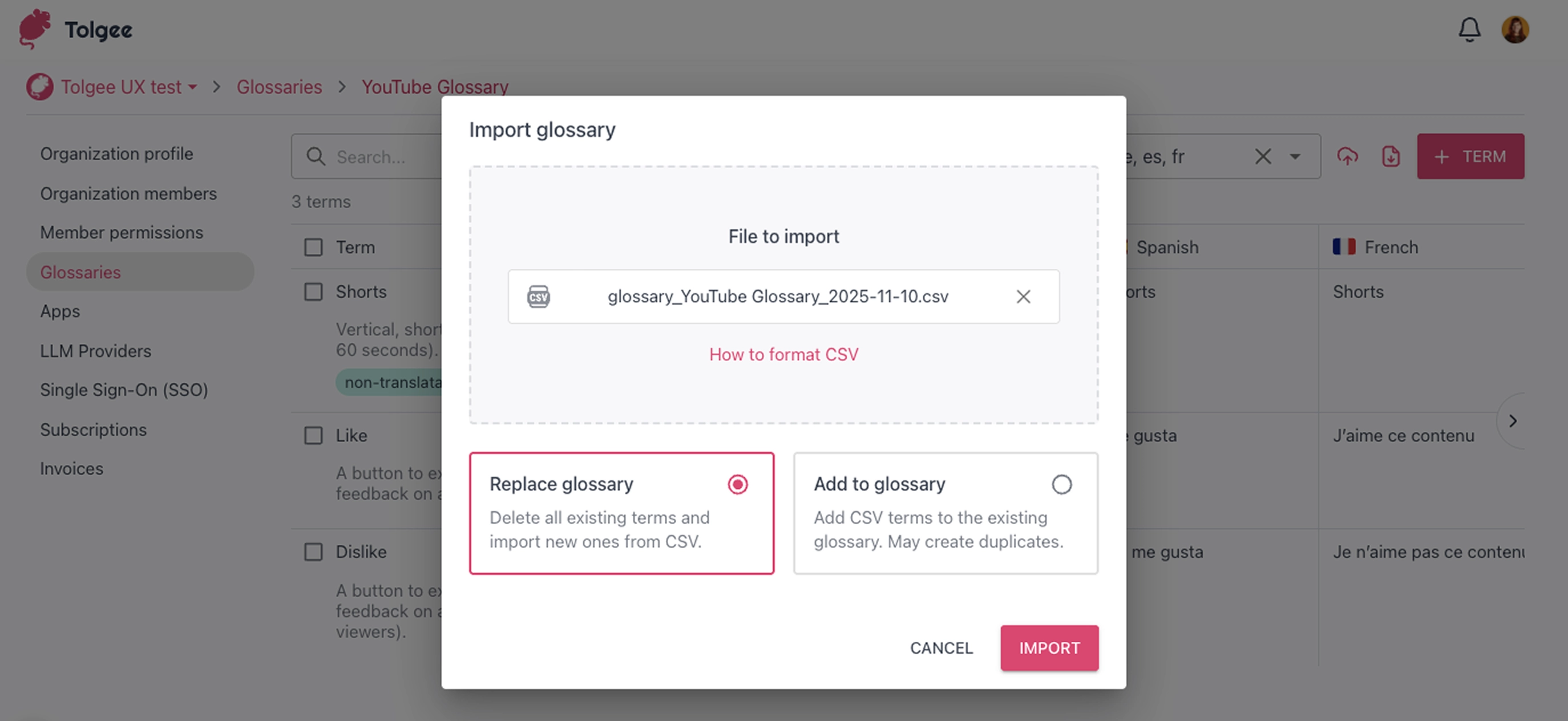
If you already have a CSV file in the proper format containing terms you want to add to your glossary, you can import them by following these steps:
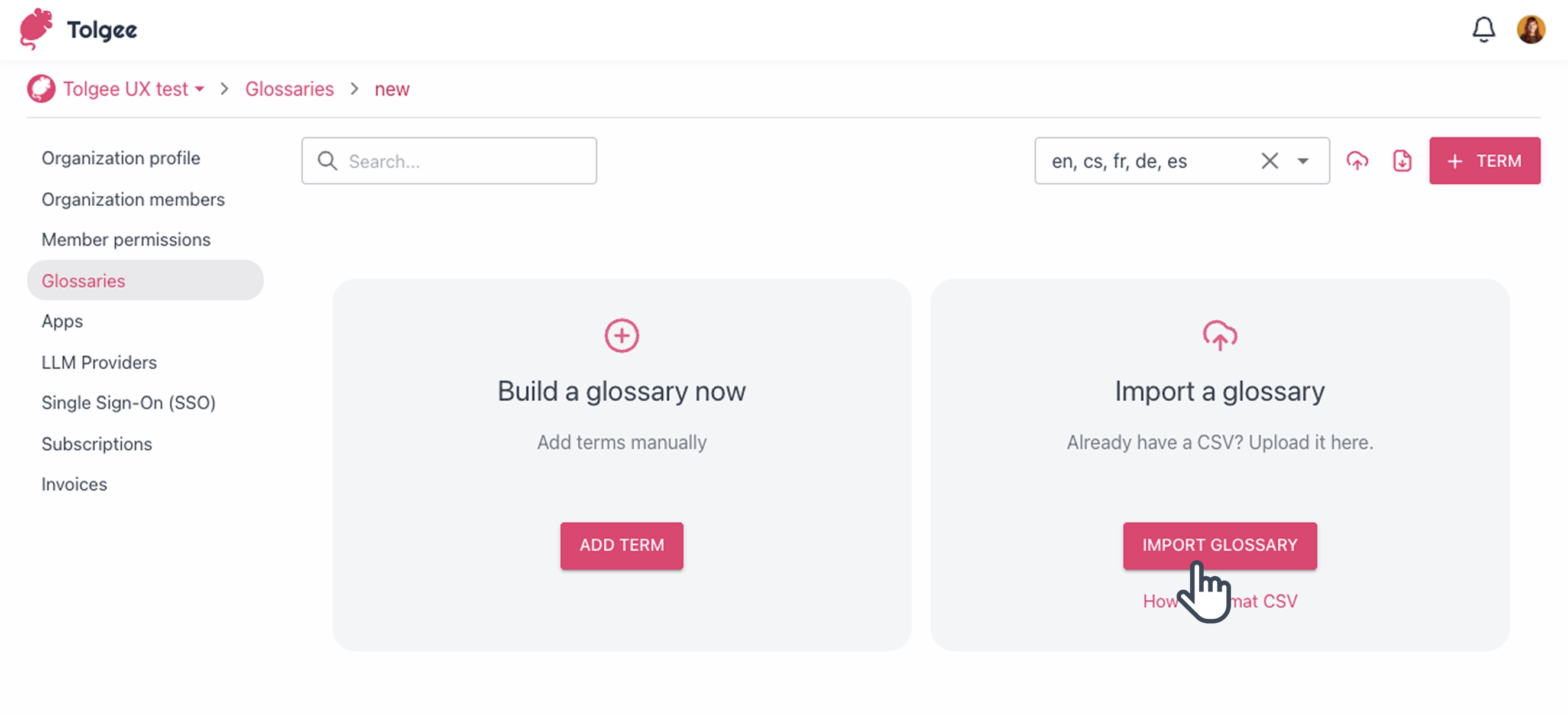
- After creating a new glossary, click
Import a glossaryin the right column or select the second icon to the left of the “+ Term” button. - Select a CSV file in the recommended format
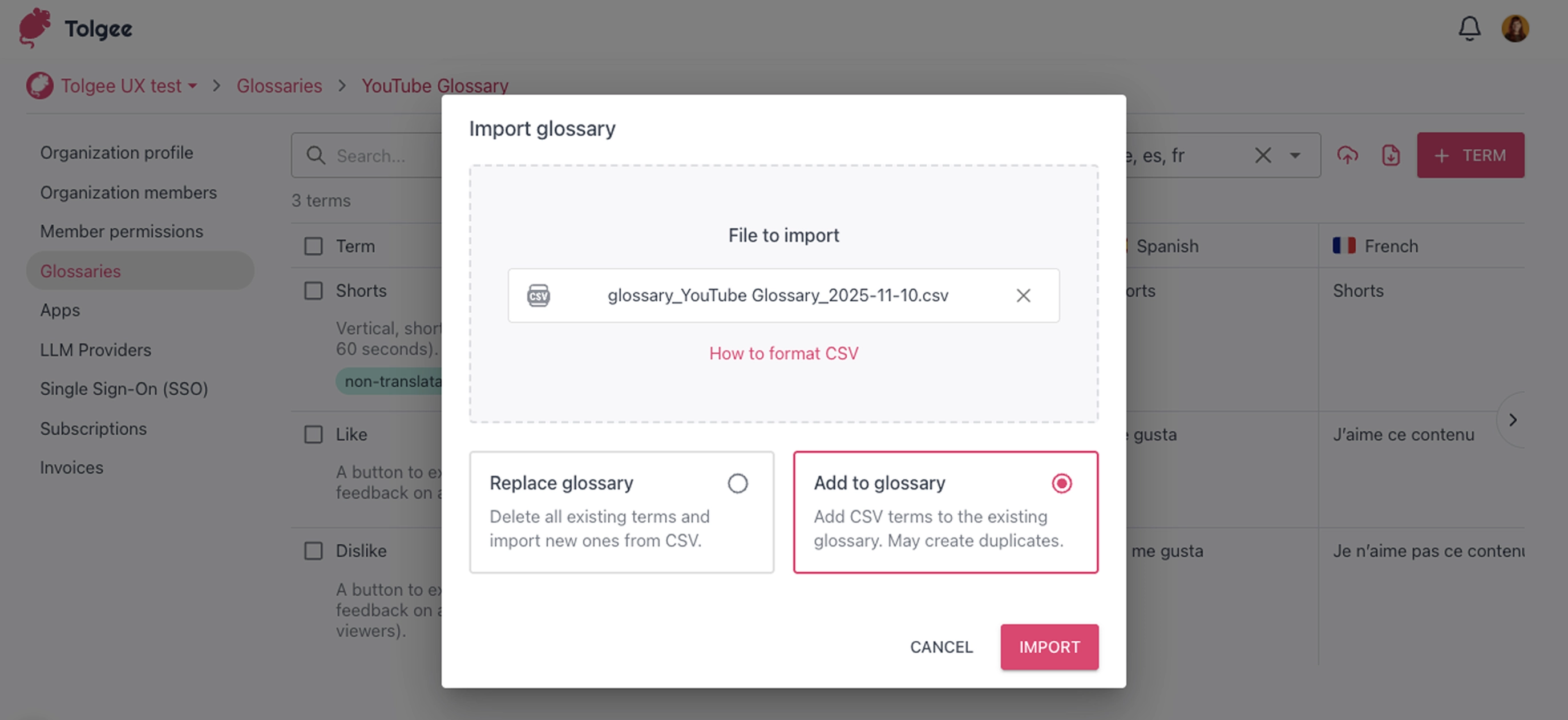
- Choose an option for how you want to import your terms to the glossary (usually applicable to an existing glossary):
- Replace glossary
- Add to glossary
- Click
Import
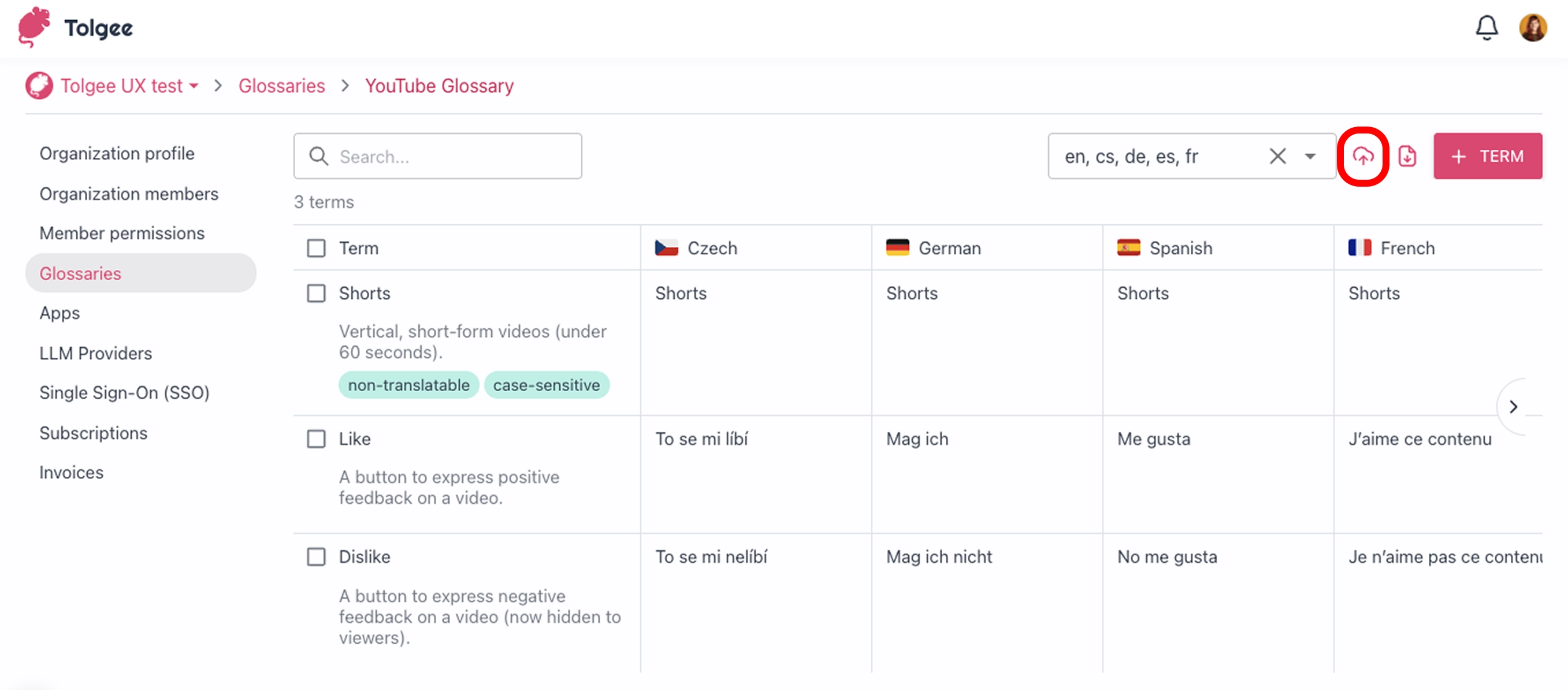
To import terms into an existing glossary, open the glossary you would like to import terms into.
Then, click the second icon to the left of the “+ Term” button.
When importing into an existing glossary, you have two options: adding new terms or replacing the entire glossary with the imported terms. The differences between these options are explained below.
Import Terms by Adding Them to a Glossary
After selecting a file to import, choose the “Add to Glossary” import mode if you want to add new terms from your CSV file to the glossary. This option is useful when you have new terms to add in bulk.
Do not use it with CSV files containing terms that already exist in the glossary, as this may create duplicates. Because a glossary can contain identical terms with different meanings, existing terms are not replaced.
Import Terms by Replacing a Glossary
After selecting a file to import, choose "Replace glossary" import mode if you want to delete all existing terms and import new ones from the CSV file. It is useful if you have a CSV file as your source of truth.
Format of the CSV File
Ensure that the CSV file meets the recommended format. Copy the structure of the columns:
- term - the term itself in the base language
- description - description of the term's meaning. This will help translators or AI understand the term better
- translatable - indicates whether the term is untranslatable (term is the same in all languages) or translatable (translation is different)
- casesensitive - indicates the case matters
- abbreviation - indicates the term is an abbreviation
- forbidden - indicates the term is forbidden
- language columns - use the language tag (short form) for languages used in the projects

Export Terms from a Glossary
Exporting terms is useful when you want to use them elsewhere or edit them externally before reuploading them to Tolgee.
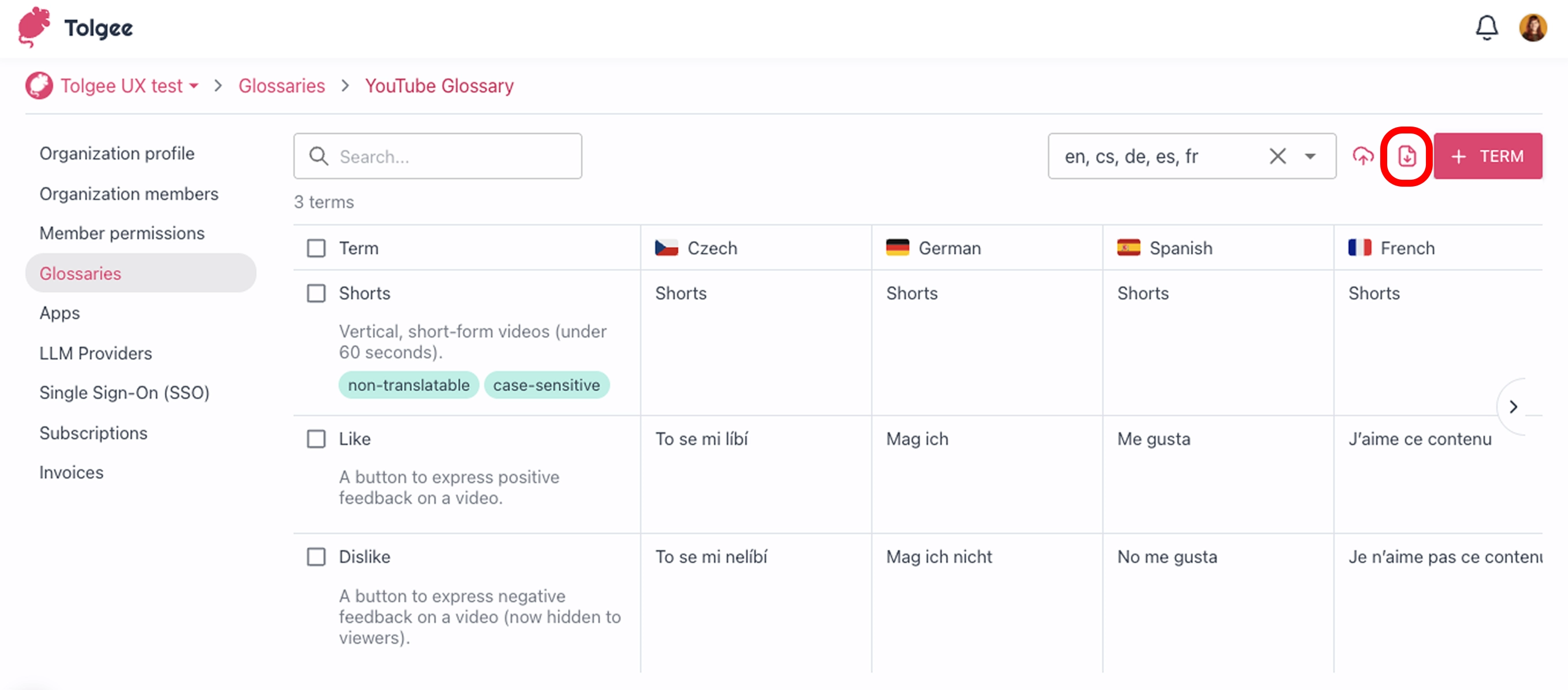
To export all terms, open the glossary and click the first icon to the left of the “+ Term” button.
- If you need to download the glossary as a CSV file, click the
Export glossaryicon - The glossary will be automatically downloaded