Organization Settings
How to Manage Organization Members and Roles
This page shows the list of all members in your organization.
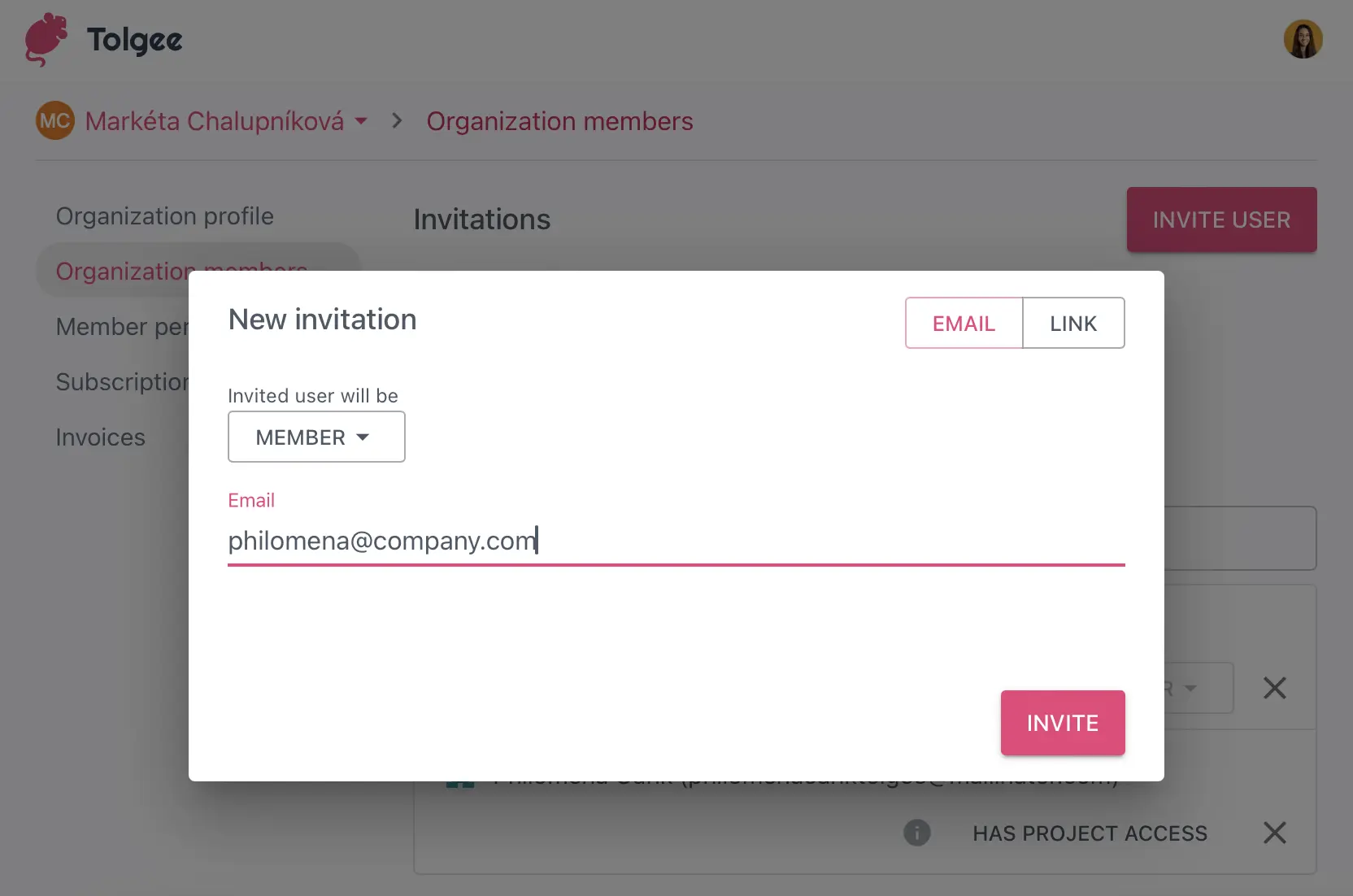
You can invite new members by clicking the Invite user button in the upper right corner. Use the toggle on the right-hand side to choose between entering their email address or creating an invitation link, to share with them.
Before sending an invite set the role of a member. The role can be one of the following:
- Member: The member has basic access to all organization projects.
- Maintainer: Same as the member, additionally can create new projects and create/edit glossaries.
- Owner: The owner of the organization. The owner can manage: the organization settings, the glossaries, the projects and the members.
Configure Default Member Permissions
This page allows you to select the default permissions for all organization members. You can change the permissions for each member on a per-project basis in the Members section of the project.
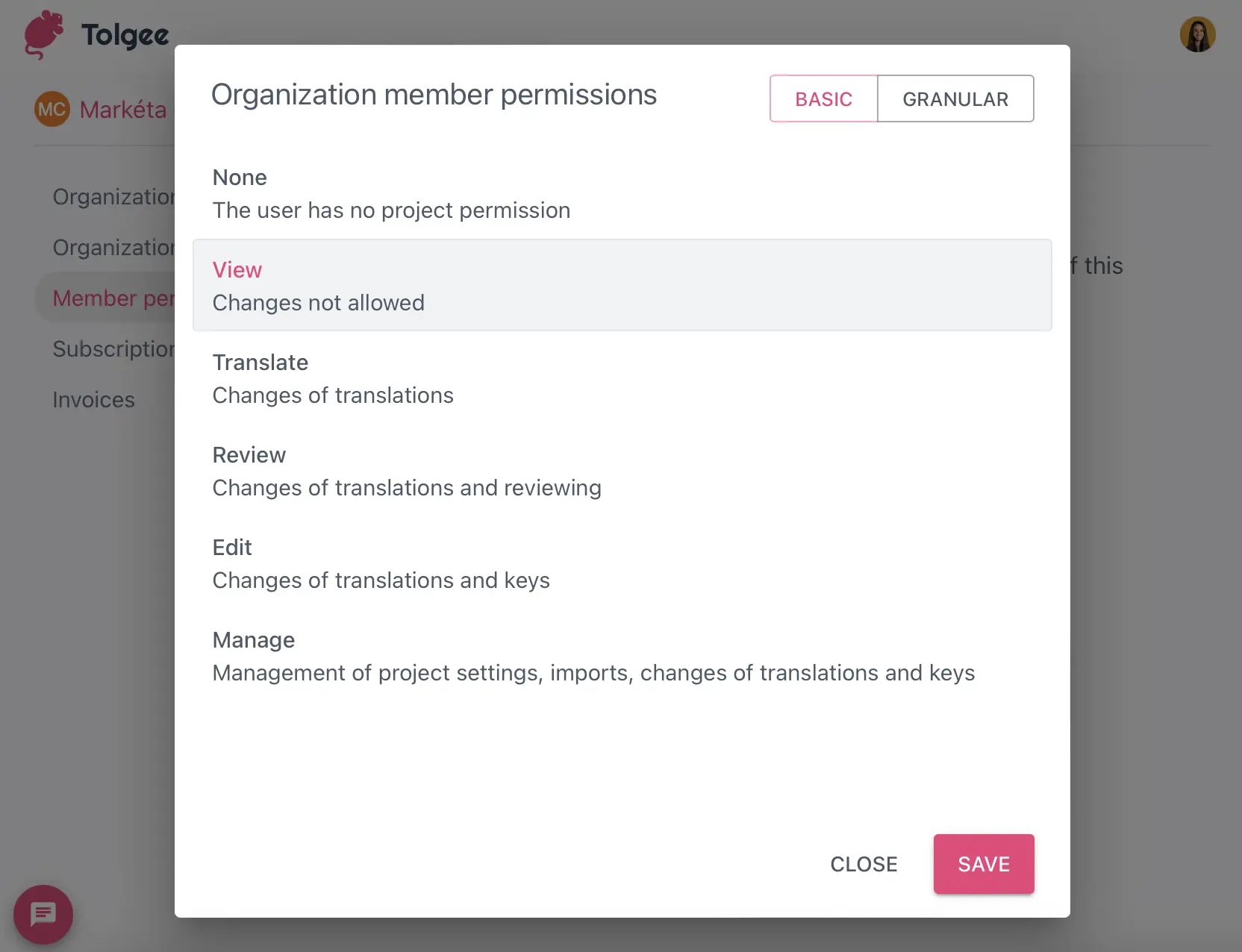
You can also set the permissions granularly. The granular permissions are available in advanced plans; see Granular permissions for more information.
View and Manage Billing
The Billing page has two tabs. The My subscription tab shows your organization's active plans and usage, together with your invoices. To change your plan, open the Plans tab.
Tolgee is available as Tolgee Cloud (the default, fully managed option) or as a self-hosted installation. Use the Cloud and Self-hosted toggle on the Plans tab to see the plans for each.
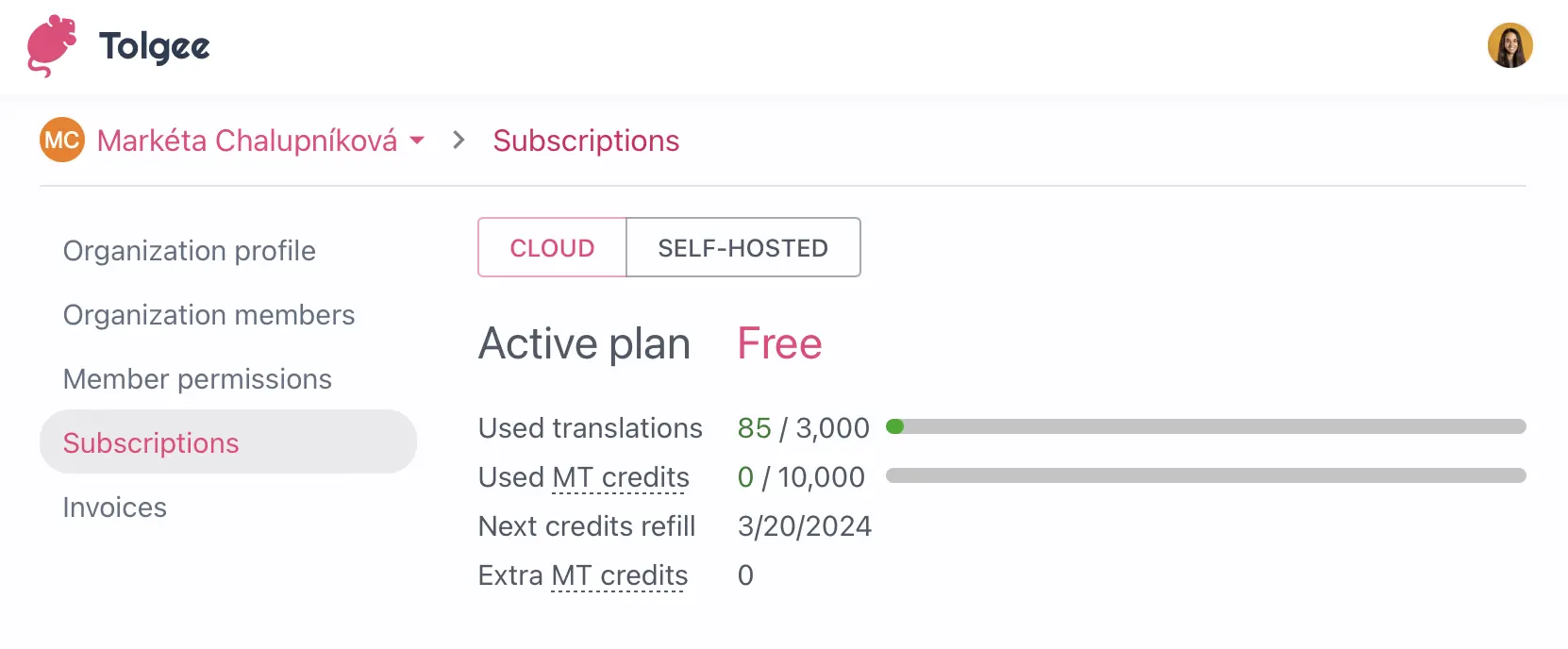
The usage shown on this page is the total usage of all projects in your organization, covering:
- Used words – The number of hosted words stored in your organization.
- Used seats – The number of users who are part of your organization or any project owned by it. Seats are unlimited in advanced plans. The Free plan includes 3 seats.
- Used MT credits – The number of Machine Translation credits used since the last monthly refill.
- Next credits refill – The date when your MT credits will be refilled.
Hosted words
Tolgee plans are priced by hosted words, not by keys. You can create as many keys and projects as you need, and what counts is how much text you store.
A hosted word is each word in your base language texts and in every translation. Each language counts separately. For example, the key signin.button has the base text "Sign in" (2 words) and the German translation "Anmelden" (1 word). In total, this key uses 3 hosted words. Adding a new language or importing existing translations therefore increases your hosted words.
If you use branching, each key counts only once across all branches. For each translation, the longest version counts, so if a branch has a longer text than main, the branch version is counted.
For the current plans and the number of hosted words included in each, see pricing. The Free plan includes 30,000 hosted words.
What happens when you reach a limit?
Imagine your organization is on a 50,000 word tier and you import a new language that brings you to 55,000 words. The import goes through, and your plan moves to the next tier at the end of the billing period, so your work isn't interrupted.
- Hosted words – Advanced plans come in word tiers. With
Auto-upgrade word tierturned on (the default), Tolgee lets you add or import content above your tier's limit. About 24 hours later, you get an email saying your subscription will move to the higher tier. The upgrade happens at the end of your current monthly billing period, based on your word count at that moment, so if you delete content and get back under the limit before then, nothing changes. On monthly billing, the new tier's price applies from your next renewal. On yearly billing, the price difference is prorated. There is no pay-as-you-go overage for hosted words. If you turn auto-upgrade off, you stay on your tier and can't add more content once you reach the limit. - MT credits – In advanced plans, translations continue if you use up your included MT credits, and the extra credits are billed with your next invoice according to the current pricing.
- Free plan – You can't add content above 30,000 hosted words, add more than 3 seats, or use machine translation when MT credits run out. Everything else continues to work. Upgrade your plan to lift these limits.
If your organization is on a legacy plan, your plan may still be limited by keys, strings, or seats, and extra usage is billed as pay-as-you-go. You can keep using your legacy plan, or switch to a current plan on this page to get unlimited keys and seats.
Access Invoices and Billing History
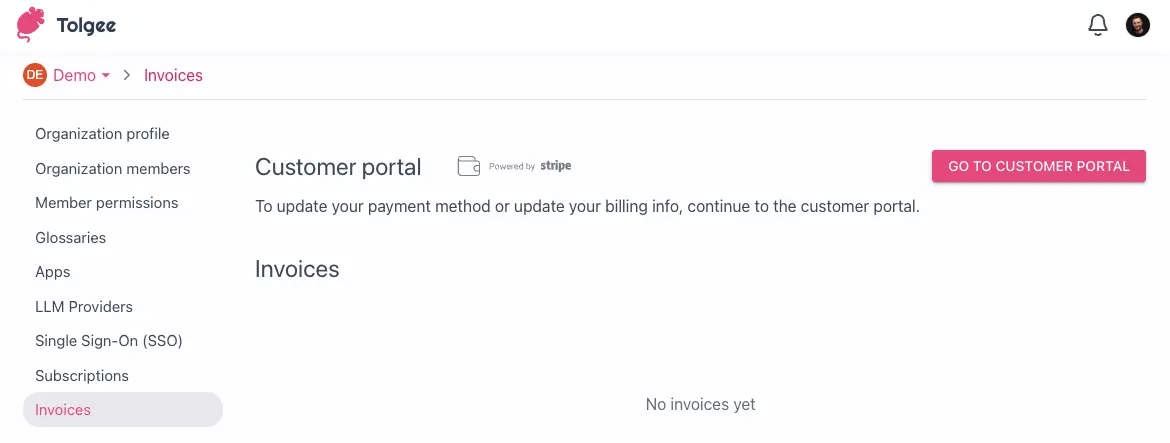
Your invoices are listed at the bottom of the My subscription tab on the Billing page. You can download each invoice as a PDF (if you have a paid plan).
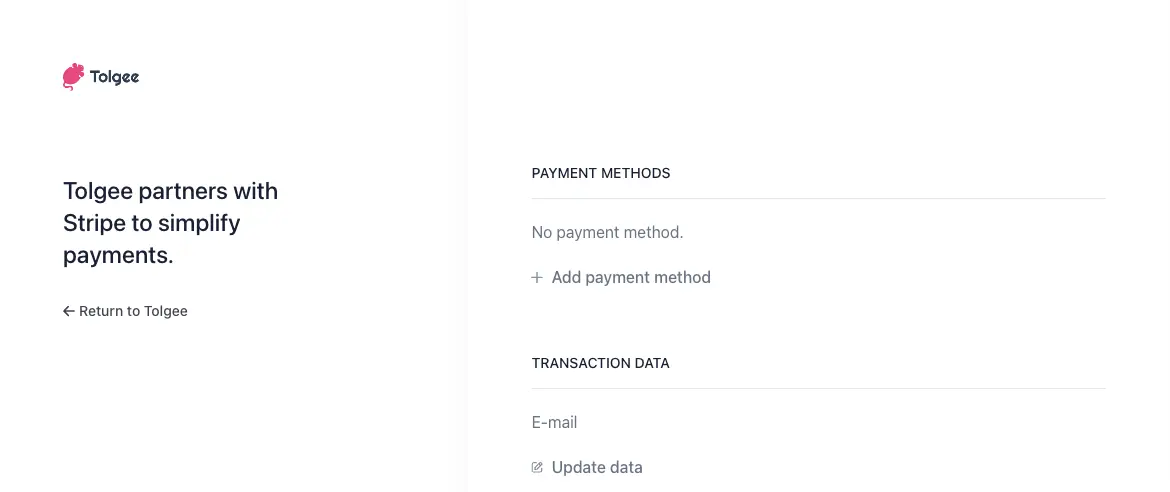
Above the invoices is the Customer portal section. To make payments easier, Tolgee partners with Stripe, and the Go to customer portal button takes you to Stripe to manage your payment method.
Here you can change your payment data; update the address, tax ID and email. Then press the "update data" button, on the bottom of the list.