Trash
When you delete a translation key, it isn't gone forever. Instead, it moves to the trash, where it stays for 7 days. During this period all translations, tags, screenshots, and descriptions are preserved, and you can restore the key at any time. After 7 days the platform permanently removes it.
Imagine you're cleaning up outdated keys and accidentally delete one that's still used in production. Without trash you'd have to recreate the key and re-enter every translation from scratch. With trash you simply restore it — all data is back exactly as it was.
Move Keys to Trash
When a translation key is no longer needed — or you want to remove it temporarily — move it to the trash. This removes the key from the active translations view but preserves all its data for 7 days.
To trash a single key, click its checkbox, select Delete keys from the batch operation dropdown, and confirm. To trash several keys at once, select them with checkboxes (hold Shift to select a range), choose Delete keys, and confirm. See Batch Operations for more details on selecting keys.
After at least one key is trashed, a trash icon with a red dot appears in the translations toolbar.

You need the keys.delete permission to move keys to trash. If you don't see the Delete keys option, ask a project admin to grant you this permission.
View Trashed Keys
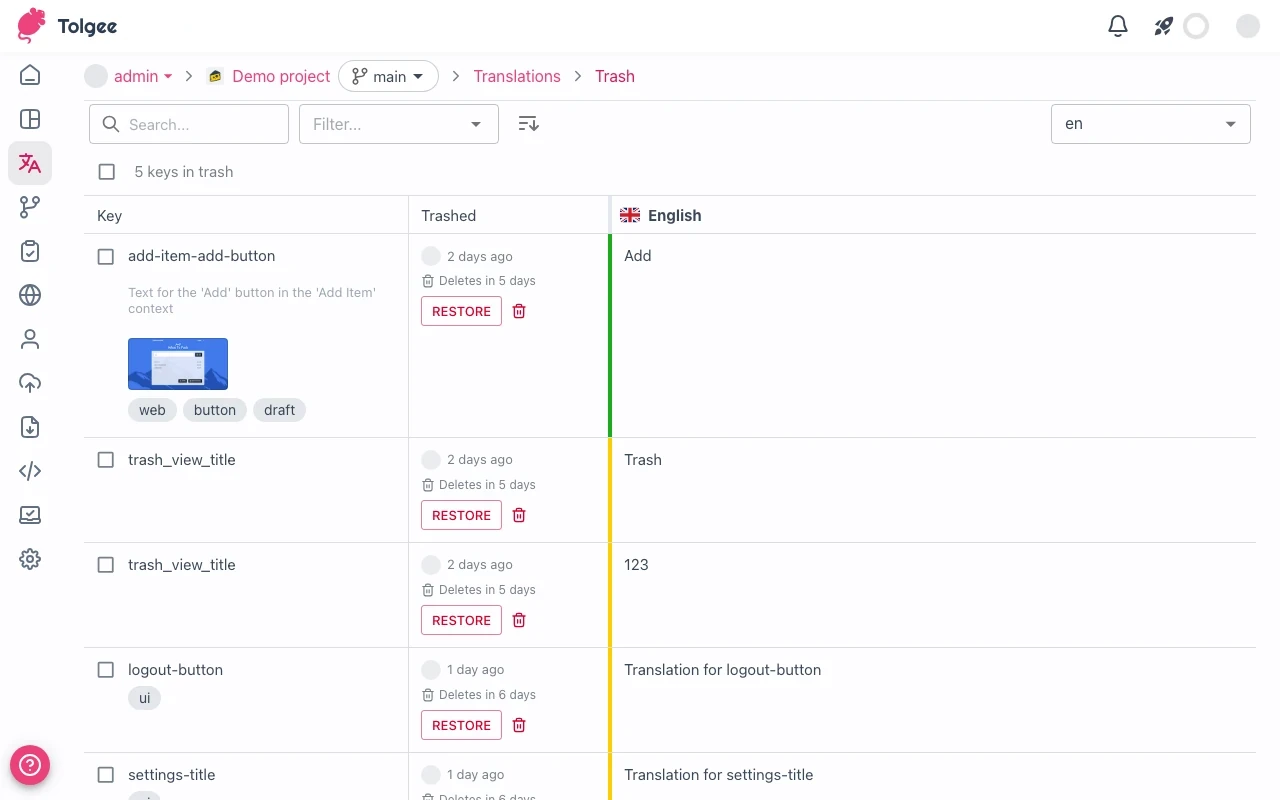
To review which keys are in the trash and decide whether to restore or permanently delete them, open the trash view by clicking the trash icon in the translations toolbar.
The trash view shows every trashed key along with its metadata:
- Key name, namespace, tags, and description
- Translations for the selected languages (read-only)
- Who deleted the key and when (hover the avatar to see the user's name)
- A countdown showing how long until automatic permanent deletion — hover it to see the exact date and time
You can search for keys by name and filter by namespace, tags, or the person who deleted the key. Use the sort button to change the order — by key name or deletion date.
You need the keys.view permission to see the trash view.
Restore Keys from Trash
If you moved a key to the trash by mistake, or realize you still need it, restore it. Restoring brings the key back to the active translations view with all its translations, tags, and screenshots intact.
To restore a single key, click the restore button on the key's row. To restore several keys at once, select them with checkboxes, choose Restore from the batch operation dropdown, and apply.
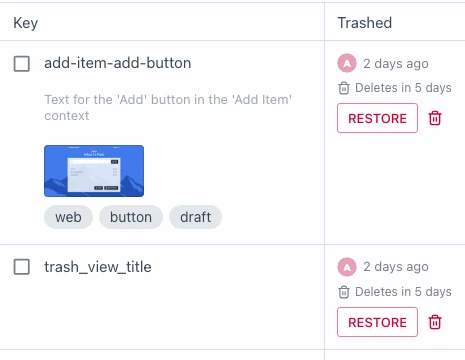
Restoring fails if an active key with the same name and namespace already exists. Rename or delete the conflicting active key first, then retry the restore.
You need the keys.create permission to restore keys from trash.
Permanently Delete Keys
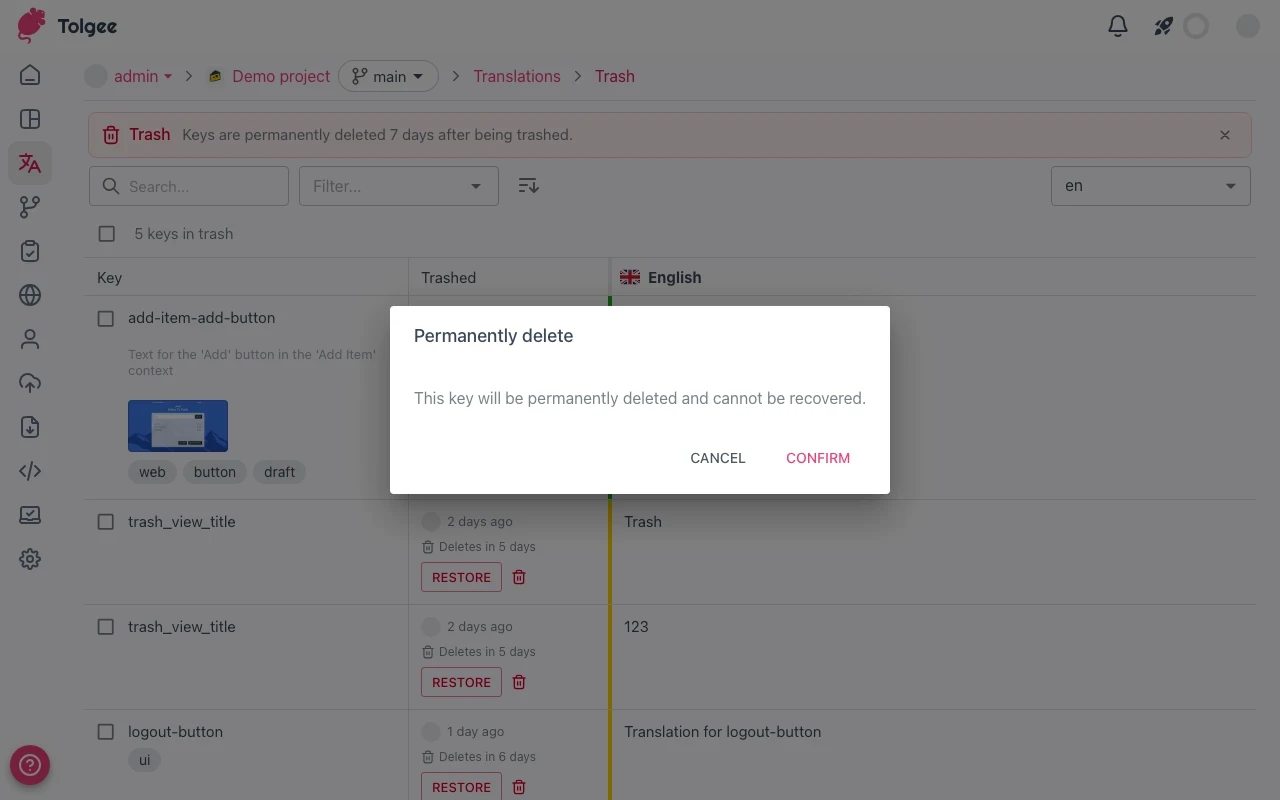
When you're certain a key is no longer needed and don't want to wait for automatic cleanup, permanently delete it from the trash. This action cannot be undone — the key and all its translations are removed forever.
To permanently delete a single key, click the permanent delete button on the key's row and confirm in the dialog. To permanently delete several keys at once, select them with checkboxes, choose Permanently delete from the batch operation dropdown, and confirm.
You need the keys.delete permission to permanently delete keys.
Automatic Cleanup
Keys that remain in the trash for 7 days are automatically and permanently deleted. You don't need to take any action — the platform handles cleanup on its own. This keeps the trash from growing indefinitely while giving you a week-long safety window to recover accidentally deleted keys.