Translating a Website with Tolgee
Translating a website with Tolgee means suggesting better wording directly on a website whose owner lets their users help with translations. It is for anyone who spots text that is wrong, awkward, or missing in their language. You install the Tolgee Tools browser plugin, sign in with a Tolgee account, and Alt+click the text to propose your version. The website's maintainers review your suggestion and decide whether it goes live.
It takes three steps, and you only do the first two once.
Installing the Browser Plugin
Tolgee Tools is the browser plugin that lets you edit and suggest translations directly on a website. Install it from your browser's store.
Signing In with a Tolgee Account
Signing in tells the website's Tolgee project who you are, so your suggestions carry your name. You don't need an invitation, and you don't need anything from the website's owner. Connect the plugin in four steps.
-
Open the website you want to translate.
-
Click the Tolgee Tools icon in your browser toolbar and choose
Connect to Tolgee.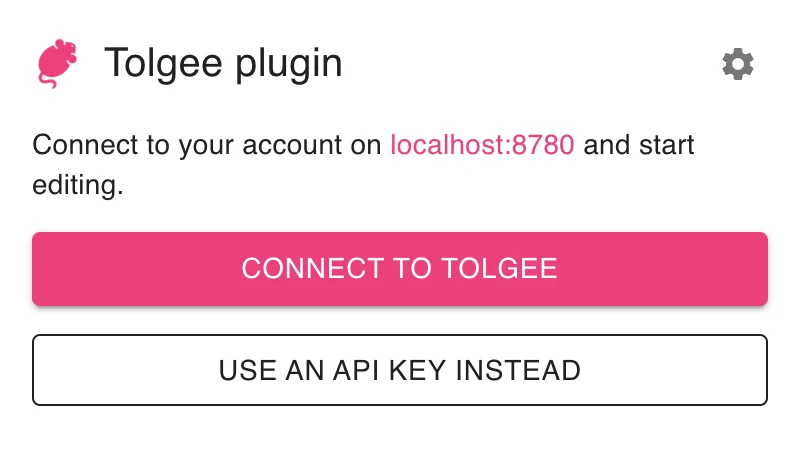
-
Sign in. Most websites use Tolgee Cloud, where you can create a free account. A website that runs its own Tolgee server sends you to that server instead, and you need an account there.
-
Click
Allowon theAllow accessscreen. Leave the permissions as they are: if you remove the permission to delete your own suggestions underModify, you can't take a suggestion back.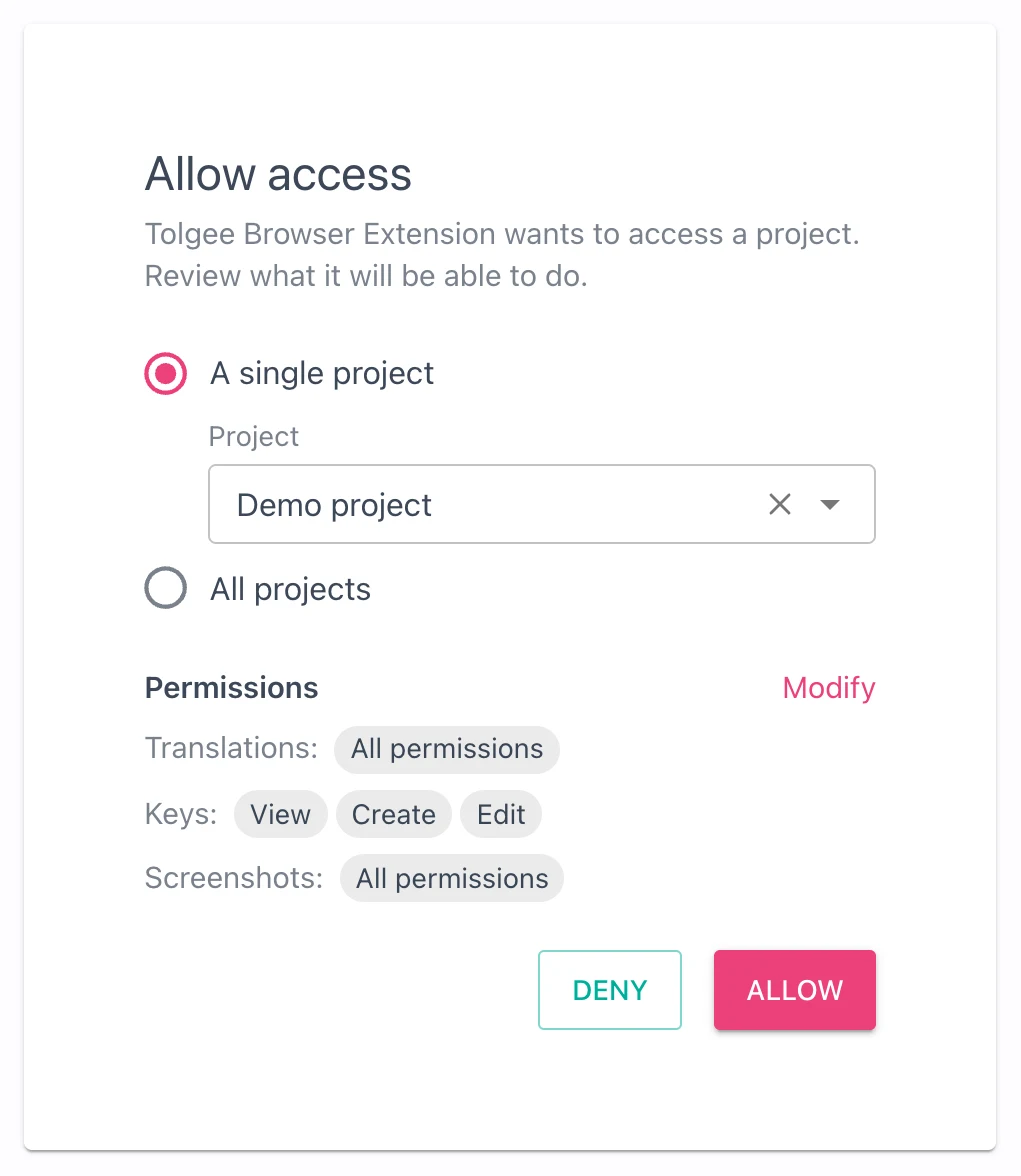
Suggesting a Better Translation
Once the plugin is connected, the website's text becomes editable for you. Suggest a change in three steps.
- Hold
Alt(Optionon a Mac) and move the mouse over the text you want to fix. It gets highlighted. - Click it. The
Quick translationdialog opens, with the key's description under its name when there is one, so you can check what the string is for. - Type your version and click
Suggest.
You can suggest as many strings on that website as you like.
What Happens to Your Suggestion
Your suggestion doesn't go live on the website straight away. It waits for someone who maintains the translations to accept it, and only then does it replace the text everyone sees. You can see the suggestions other people have made on the same text, and you can delete your own while it waits, as long as you allowed the plugin to delete your suggestions when you signed in.
The website's owner reviews your suggestion in Tolgee, where everything you can do as a contributor is described in Community Translation. There you also find out how to list every project you have suggested on.
Fixing Common Problems
Find the line that matches what you see, and do what it says.
- The
Connect to Tolgeebutton is disabled, under the noteSign-in not available on this site. The website doesn't tell the plugin which Tolgee project it belongs to. Tell the people who run the website, and point them to Community Translation in Context. - Signing in fails or ends in an error. The website's Tolgee server may be too old or not set up for signing in this way. Tell the people who run the website; the same page explains what they need to change.
- Nothing gets highlighted when you hold
Alt. Reload the page after installing the plugin, then click the Tolgee Tools icon and check that it shows you as connected. - The plugin shows
Sign-in needs a newer Tolgee SDKinstead ofConnect to Tolgee. The website uses an older version of the Tolgee SDK. Tell the people who run the website that it needs@tolgee/web7.3.0 or newer. - You can open the dialog, but there is no
Suggestbutton. The website may use a Tolgee SDK older than 7.3.0, the project may have suggestions turned off, or your account may not be allowed to suggest there. Nothing on your side changes any of these. Tell the people who run the website what you see, and point them to Troubleshooting Missing Suggestions.