Community Translation
Community Translation is a Tolgee feature for projects that want translation help from their community, for example open-source localization by volunteers. Make a project public and anyone with a Tolgee account can browse it, suggest translations, and leave comments. Contributors cannot edit anything directly. Project members review the suggestions and accept the ones they like. You never need to invite volunteers as members.
The page has two parts. The first is for project owners and members: making a project public, sharing it, reviewing suggestions, and seeing who contributed. The second is for contributors: what you can do on a public project and where to find the projects you have helped with.
For Project Owners and Members
As an owner you decide whether a project is public, and as a reviewer you decide which of the contributors' suggestions go live. Community Translation is not gated by a plan. It is available on Tolgee Cloud and on self-hosted Tolgee v3.215.0 or newer.
Making a Project Public
Publishing a project is what turns on Community Translation for it. Only the organization owner (or a server administrator on a self-hosted instance) can change this, because it opens the project to anyone with a Tolgee account.
Before you publish, know what you expose. Contributors get the same view access as a member with
the View role: they can read every translation and screenshot in every language, and they can
export the whole project. Do not publish a project whose strings must stay private.
To publish the project, follow these steps.
- Open
Project settingsand switch to theAdvancedtab. - In the
Public projectsection, turn onMake this project public. - Confirm the
Make project public?dialog. Because this is a sensitive change, Tolgee may then ask for your password.
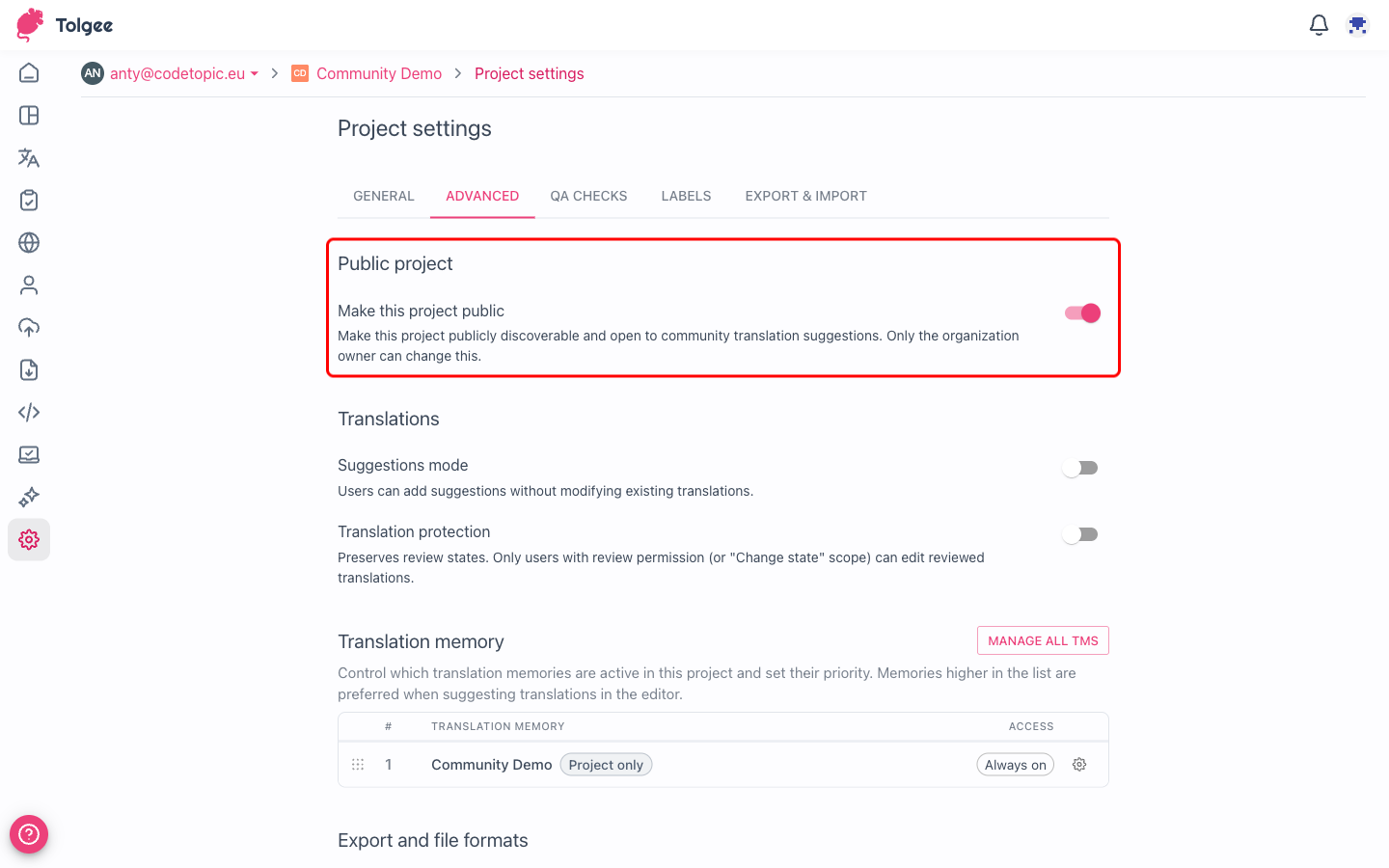
From then on, anyone with a Tolgee account can find the project on the public projects page and suggest translations, as long as suggestions are enabled. Contributors do not become members and cannot edit existing translations.
If you cannot see the Public project section or the switch is disabled, you are neither the
organization owner nor a server administrator. Ask an owner to publish the project for you.
On a self-hosted instance, contributors need accounts on your server, and they create them
themselves. A default installation has authentication turned off and registrations closed, so
turn on tolgee.authentication.enabled
and tolgee.authentication.registrations-allowed.
An invitation would make the person a member, not a contributor.
If your project is open source and non-commercial, Tolgee offers a free Optimise plan for it. Write to sales@tolgee.io with a link to the project.
Sharing the Project with Your Community
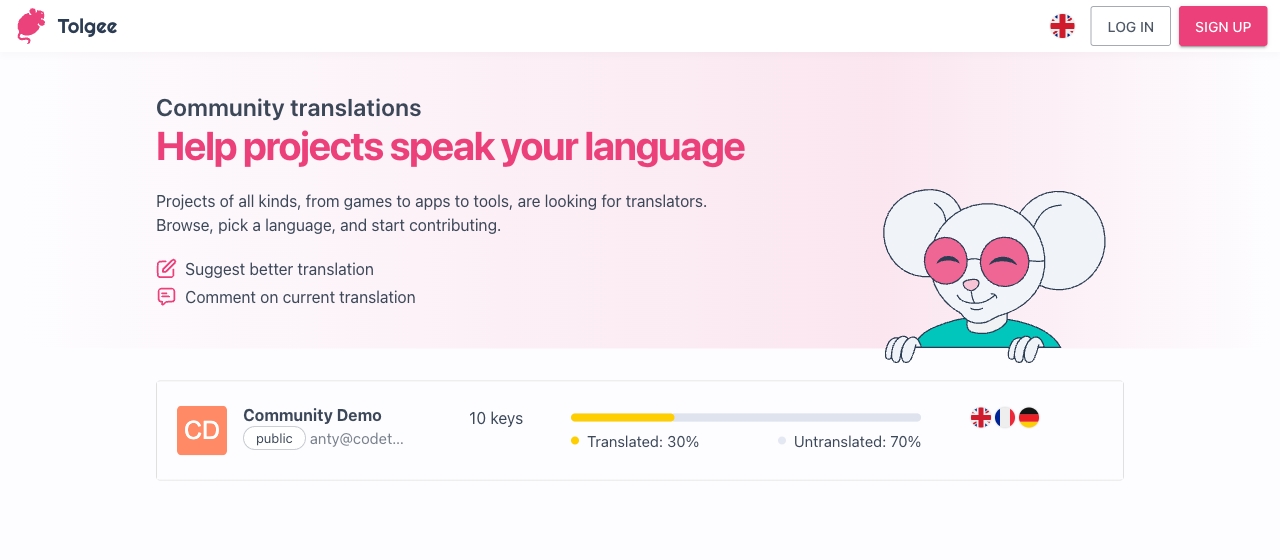
Public projects are listed on the public projects page at
https://app.tolgee.io/public-projects. On a self-hosted
instance, the page is at the same path on your own address, for example
https://tolgee.example.com/public-projects.
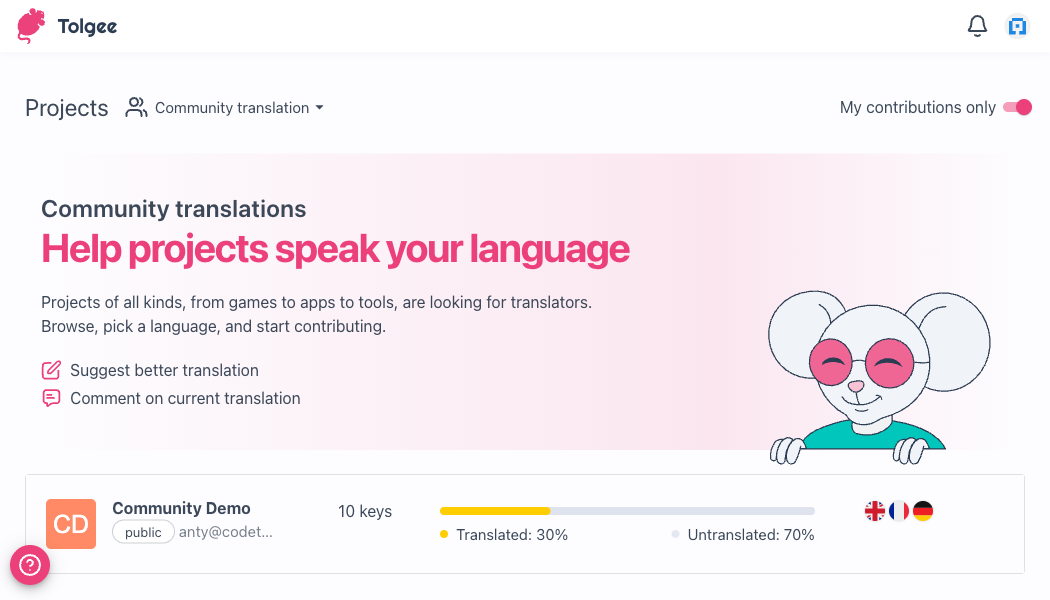
The page opens with a Community translations banner that explains to newcomers what they can do,
followed by the list of public projects. Anyone can browse it without an account. To suggest or
comment, a contributor logs in, or creates a free account on Tolgee Cloud.
Contributors do not have to work inside Tolgee. If your website uses the Tolgee JS SDK, they can suggest translations directly on the site with the browser plugin. Read more in Community Translation in Context.
Reviewing Community Suggestions
Contributors propose changes as suggestions, never as direct edits, so nothing they submit goes
live until a reviewer accepts it. Accepting needs permission to both edit translations and change
their state in the language, and declining needs only the permission to change their state. The
Review role has both. Open the translation in the editor and review the incoming
suggestions the same way you review any other suggestion.
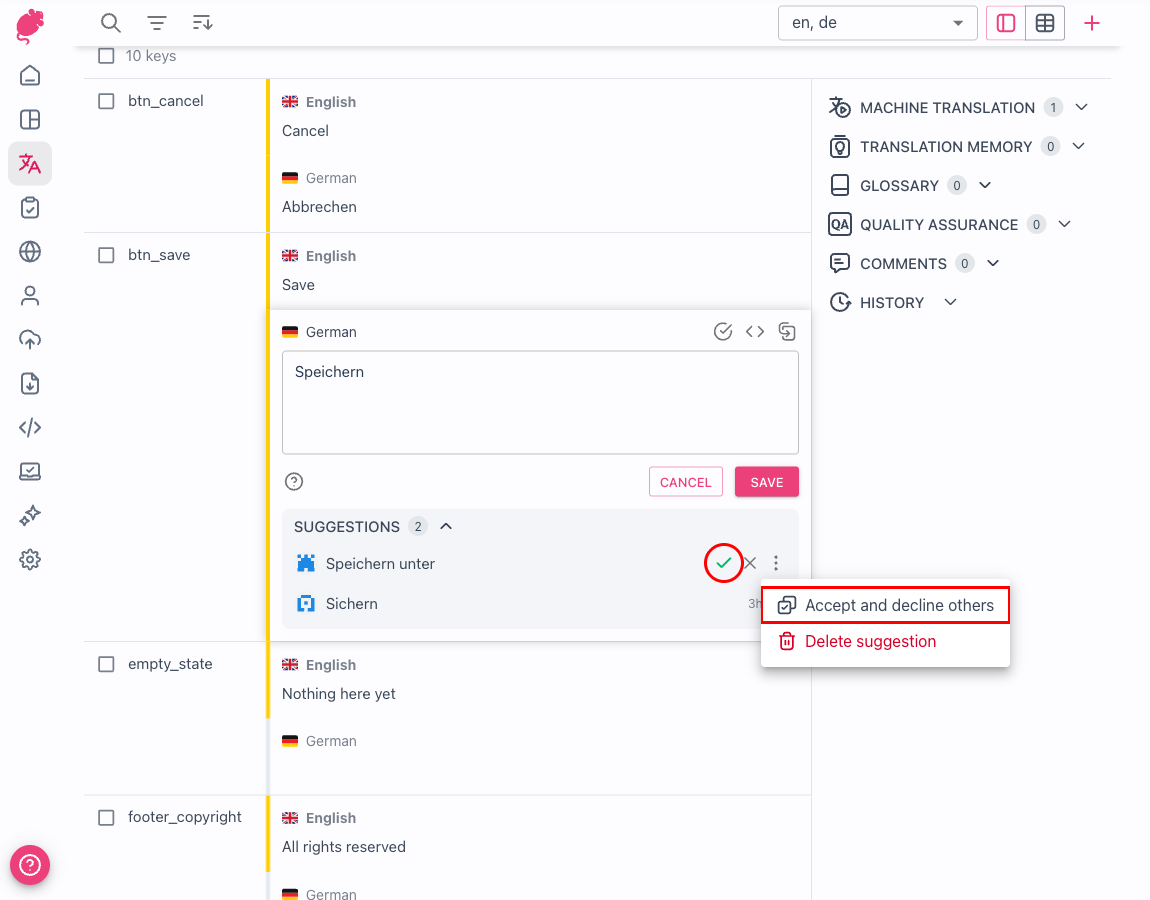
When a suggestion is good, you have two ways to accept it.
- The check mark icon on the suggestion, with the tooltip
Accept only, promotes that suggestion to the live translation and leaves the other suggestions open, which is useful when you want to keep comparing alternatives. Accept and decline others, in the suggestion's⋮menu, promotes the suggestion and dismisses the competing ones in a single step.
For the full suggestion workflow, including how to enable suggestions for your project, read Translation Suggestions.
Seeing Who Has Contributed
When someone who is not a member suggests or comments on your public project, Tolgee records them as a contributor. This lets you recognize the people helping out and invite the most active ones to join your team.
Contributors appear on the project's Members page. As soon as a public project has its first contributor, the page splits into two tabs.
- The
Teamtab lists your project members, as it always did. - The
Communitytab lists everyone with activity on the project who is not currently a member, with the dates of their first and last contribution. A former member who edited translations while still a member appears here too.
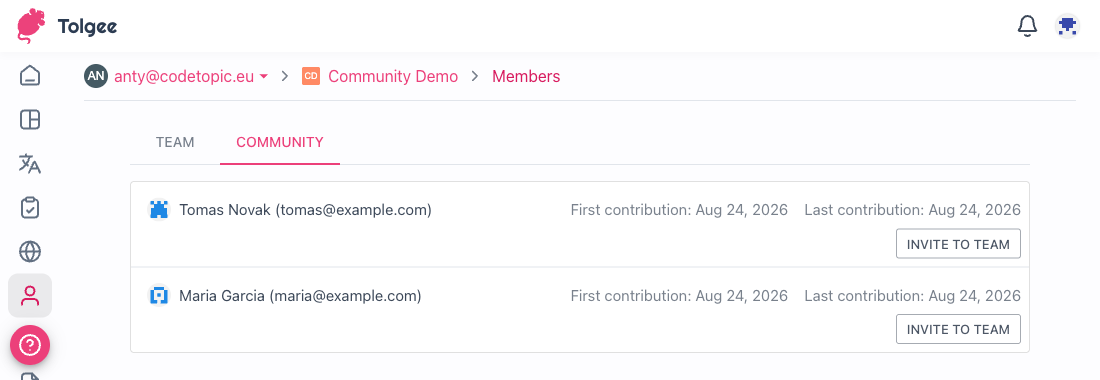
If you want a frequent contributor to become a full member, for example so they can edit
translations directly, use the Invite to Team button on their row. This sends them the same
project invitation
you would send anyone else. You need the permission to manage members to invite a contributor.
Making a Project Private Again
Make a project private again when you no longer want help from outside your team, or when its strings have to stop being visible to everyone. The same people who can publish a project can make it private: the organization owner or a server administrator.
To make the project private, follow these steps.
- Open
Project settingsand switch to theAdvancedtab. - In the
Public projectsection, turn offMake this project public. - Confirm the
Make project private?dialog. Tolgee may then ask for your password.
The project disappears from the public projects page, and people who are not members lose access to
it. Suggestions and comments they already made stay in the project. The Community tab on the
Members page is hidden while the project is private.
For Contributors
As a contributor you help translate a project you are not a member of. You need a Tolgee account on the server the project lives on, and nothing else: no invitation, no seat, and no approval from the project's owner.
What Contributors Can Do
When a project is public, every user with a Tolgee account gets community permissions on it.
These are a limited subset of the View role
plus the ability to suggest and comment. A contributor can
- View and export translations and screenshots in all languages
- View the project activity
- Propose translation suggestions, if the project has suggestions enabled
- Comment on translations, for example to flag a wrong translation
- Delete their own suggestions
Community permissions never let anyone change an existing translation or change its state (translated or reviewed).
Contributors are not project members. They do not use a seat, and publishing a project does not affect its billing. To allow someone to edit translations directly, the project has to invite them as a member.
Finding Projects You Have Contributed To
Once you have suggested or commented on at least one public project, Tolgee gives you a page that lists the projects you have helped with. To open it, follow these steps.
- Log in to Tolgee. You land on your projects list.
- Open the organization switcher, the drop-down next to the
Projectsheading, which normally lists your organizations. - Pick
Community translationat the bottom of the list.
The community projects page is the public projects page shown inside your account. The
My contributions only toggle in its top right corner narrows the list to the projects you have
suggested or commented on. It is on when you open the page from the switcher. Turn it off to
browse every public project.