Community Translation in Context
Community Translation in Context lets contributors suggest translations on your live website instead of inside Tolgee. It is for owners of public projects whose site uses the Tolgee JS SDK. A contributor installs the Tolgee Tools browser plugin, signs in with their own Tolgee account, Alt+clicks a string on your site, and proposes a better translation. You review the suggestion in Tolgee, and nothing changes on the site until you accept it.
This page is for the project owner: what to switch on in the project, what to declare on the website, and what contributors can and cannot do in the dialog. If you came here to translate someone else's website, read Translating a Website with Tolgee instead.
A public project lets anyone with a Tolgee account suggest
translations, but only inside the Tolgee platform. The contributor has to find your project, find
the right key, and guess where the string appears in your product. Most people who notice a clumsy
translation on your website never get that far. With in-context suggesting, a Czech user of your
open-source app who notices that a checkout button says "Zaplatit nyní" where "Zaplatit" would
read better can Alt+click the button, type the new text, and click Suggest. The next time you
open the key in Tolgee, the suggestion is waiting for you.
Preparing Your Project
Contributors can only suggest when the project is open to them and accepts suggestions. Both
switches are in Project settings > Advanced.
- Make the project public.
- Turn on
Suggestions mode. While it is off, nobody can create a suggestion, in the platform, in context, or through the API.
On Tolgee Cloud, that is all. A self-hosted instance needs three more things before contributors can sign in through the plugin.
- Tolgee v3.230.0 or newer.
- The browser extension turned on
with
tolgee.oauth2.browser-extension-enabled, together withtolgee.front-end-urlset to your public address. With the extension enabled, Tolgee refuses to start until it knows its own address. - Open sign-up, so contributors can create their own accounts. A default installation has
authentication off and registrations closed, so turn on
tolgee.authentication.enabledandtolgee.authentication.registrations-allowed.
Preparing Your Website
The browser plugin has to know which Tolgee server and which project your website belongs to. It
reads both from the configuration of the Tolgee JS SDK on the page, so declare
apiUrl and
projectId in your production build. Without
projectId, the plugin can't offer signing in on your site, and contributors could only connect
with an API key, which they don't have.
import { Tolgee, FormatSimple } from '@tolgee/web';

const tolgee = Tolgee()
  .use(FormatSimple())
  .init({
    language: 'en',
    apiUrl: 'https://app.tolgee.io',
    projectId: 1234,
    staticData: {
      en: () => import('./i18n/en.json'),
      cs: () => import('./i18n/cs.json'),
    },
  });
You find the project ID in the URL of your project in Tolgee, for example
https://app.tolgee.io/projects/1234.
Don't add an apiKey to your production configuration. It isn't needed here. Each contributor
signs in with their own Tolgee account through the plugin, and Tolgee decides what they can do
from that account.
You don't need to ship the in-context tools to every visitor either. The plugin adds them to the page for the people who use it, the same way it does for your team. Read more in In-context on production.
Keep the SDK on your website up to date. The plugin loads the in-context dialog in the same
version of @tolgee/web as your website uses, so contributors on a website with an older SDK get
a dialog that can't suggest, whatever version of the plugin they have. Suggesting in the dialog
needs @tolgee/web 7.3.0 or newer, and
signing in through the plugin needs 7.2.0
or newer.
What Contributors Need
Contributing takes no invitation and no setup on your side for each person. A contributor needs two things.
- A Tolgee account on the server your project lives on. On Tolgee Cloud, anyone can sign up for free. On a self-hosted instance, the account comes from your server, as described in Preparing Your Project.
- The Tolgee Tools plugin for Google Chrome or Mozilla Firefox.
With both in place, the contributor connects the plugin to your project in three steps.
- Open your website and click the Tolgee Tools icon in the browser toolbar.
- Choose
Connect to Tolgee. - Sign in and allow the plugin to work with your project on the consent screen.
After that, holding Alt and clicking a string on your website opens the dialog. You don't have
to write these steps down yourself: the Translate with Tolgee badge described in
Inviting Contributors with a Badge links to a page that
walks a first-time contributor through them.
Inviting Contributors with a Badge
Someone who notices a clumsy translation on your website has no way of knowing they are allowed
to fix it. A Translate with Tolgee badge tells them, and links to
Translating a Website with Tolgee, a short page for first-time
contributors: install the plugin, sign in, Alt+click the text, and what to do when something
doesn't work.
The badge looks like this.

Put it where people who read your text will see it, in the footer of your website, next to your language switcher, or in your README.
For a website, paste this HTML.
<a href="https://docs.tolgee.io/translate-with-tolgee" target="_blank" rel="noopener">
  <img src="https://docs.tolgee.io/img/badges/translate-with-tolgee.svg" alt="Translate with Tolgee" height="28">
</a>
For a README or anything else that takes Markdown, paste this.
[](https://docs.tolgee.io/translate-with-tolgee)
The badge does its work on the running website, because that is where a contributor can Alt+click the text. In a README it still tells people the project accepts translations, but they have to open the website before anything happens.
You can also download the badge and serve it with your own assets, instead of loading it from
docs.tolgee.io.
The badge sends people to a page that assumes your website is ready for them. Before you publish
it, check that your project is public, that Suggestions mode is on, and that your site declares
apiUrl and projectId. Without those, a contributor follows all three steps and then finds
nothing to click.
What Contributors Can and Can't Do
In the dialog, a contributor gets the same community permissions as in the platform. The dialog shows only what they can use, so they never face a disabled form.
This is the dialog a contributor sees after changing the Czech text of a button.
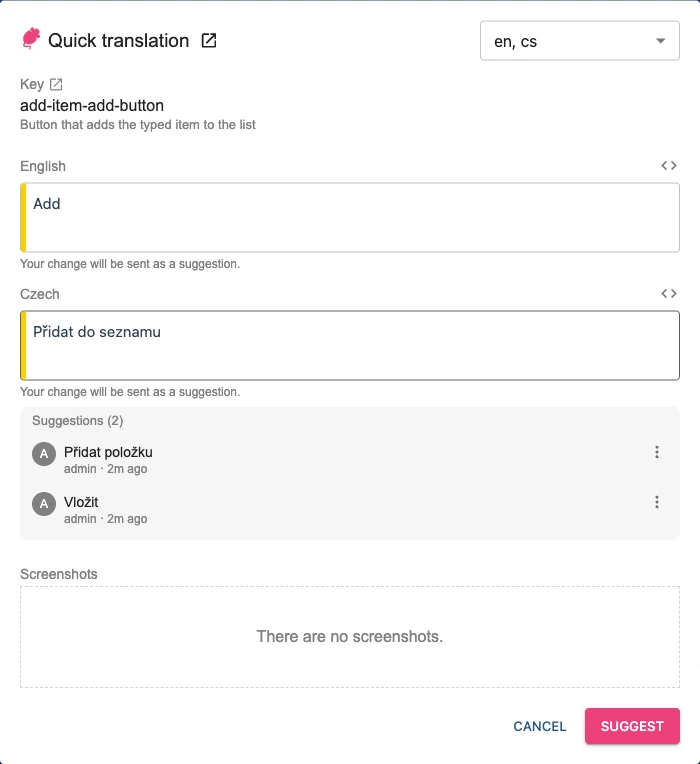
A contributor can
- See the translations of the string in the languages they choose
- See the key's screenshots
- See the suggestions other people have already made
- Suggest a new translation in any language
- Delete their own suggestion, as long as they granted the plugin that permission on the consent screen
A contributor can't
- Change a live translation or its state
- Accept or decline suggestions, or delete suggestions made by others
- Create keys, so a string that has no key in your project yet can't receive suggestions
- Edit tags, plural settings, or the character limit, or upload screenshots
Reviewing the Suggestions
Suggestions made in context are ordinary suggestions. You find them in the translations view, and you can review them there.
Your team members can also review without leaving your website. With the plugin connected, they see the pending suggestions under each language in the same dialog and can accept, decline, or delete them according to their permissions. Read more in Reviewing Suggestions in the Dialog.
The people who suggested appear in the Community tab of the
Members page, where you can
invite the most active ones to your team.