Translation QA Checks
When managing translations across many languages, it's easy for localization errors to slip through. A translator might accidentally remove a placeholder, break placeholder syntax, add extra spaces, or miss punctuation. These translation quality issues are hard to spot manually, especially at scale, and can lead to broken UI, missing data, or confusing user experiences.
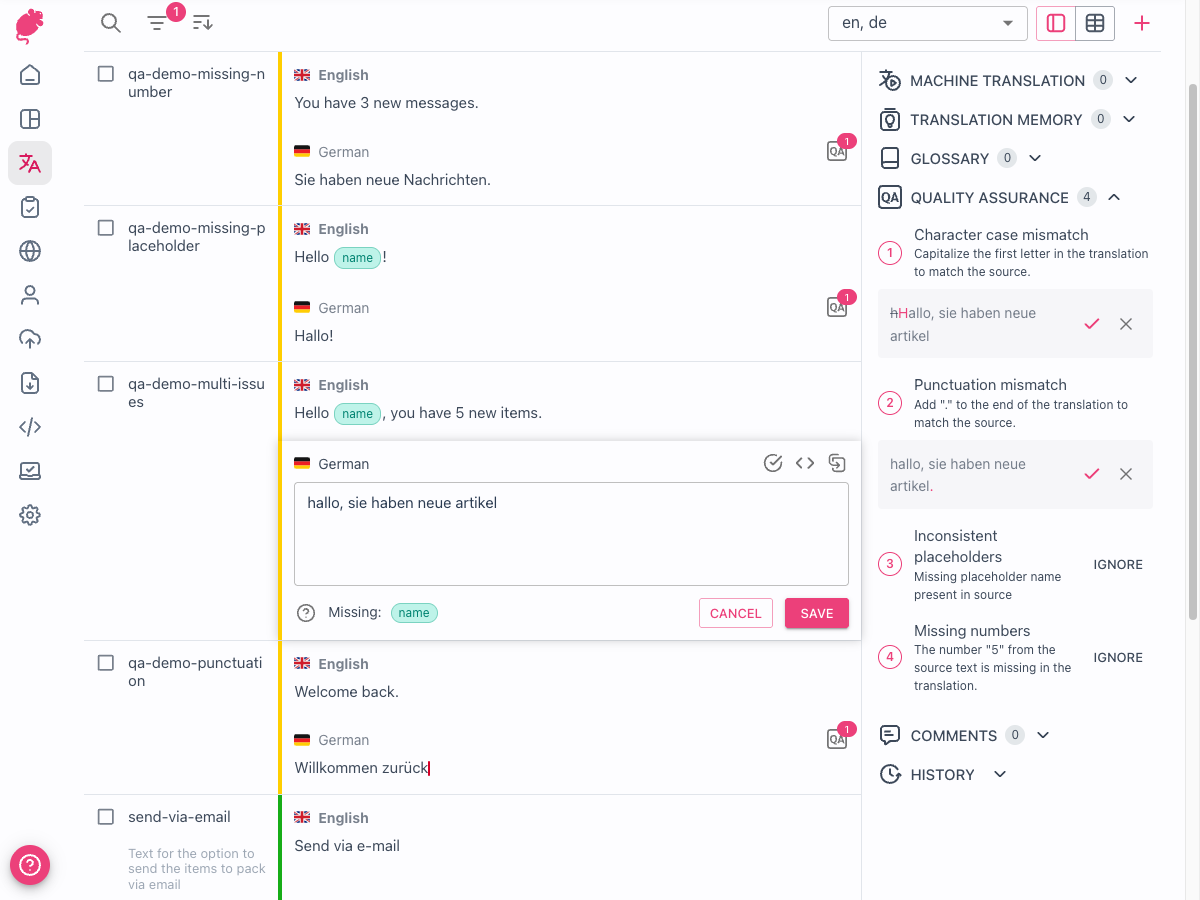
QA Checks solve this by automatically validating your translations and flagging potential issues such as missing placeholders, broken placeholder syntax, inconsistent punctuation, spelling and grammar errors, and more. Issues are detected in real time as you type and also run in the background when translations are saved or modified in bulk.
QA Checks are available in advanced plans. Upgrade your plan to use this feature.
If you use the self-hosted version, you must set up the license to use this feature.
Enabling QA Checks
If you would like to start using QA checks, you have to enable them first. To enable QA checks
- Go to
Project settings - Find the
QA Checkssection - Toggle QA Checks on
Once enabled, Tolgee will automatically run checks on all translations in the project. You'll see a progress indicator while the initial check completes.
Available Check Types
Tolgee provides check types organized into two categories: general checks that catch common translation issues, and syntax checks that validate the structure of the translation itself.
General Checks
These checks catch common translation issues such as formatting inconsistencies, missing content, and spelling or grammar errors
| Check | Description |
|---|---|
| Empty translation | Detects blank or whitespace-only translations |
| Spaces mismatch | Leading/trailing space differences, doubled spaces, non-breaking spaces |
| Unmatched new lines | Missing or extra line breaks compared to the base translation |
| Trim check | Detects leading/trailing spaces or new lines within the base translation |
| Character case mismatch | Capitalization differences (e.g., first letter case) |
| Missing numbers | Numeric values present in the base but missing in the translation |
| Spelling | Spelling errors (off by default) |
| Grammar | Grammar errors (off by default) |
| Repeated words | Consecutive repeated words (e.g., "the the") |
| Punctuation mismatch | Missing, extra, or replaced punctuation marks |
| Brackets mismatch | Missing or extra brackets compared to the base |
| Brackets unbalanced | Unclosed or unopened brackets within the translation |
| Special character mismatch | Missing or extra special characters |
| Different URLs | URLs that are missing, extra, or different from the base |
| Key length limit | Translation exceeds the key's configured character limit |
Syntax Checks
These checks validate the structure and syntax of the translation itself
| Check | Description |
|---|---|
| Inconsistent placeholders | Variable placeholders (e.g., {userName}) missing or extra compared to the base |
| Inconsistent HTML | HTML tags missing or extra compared to the base |
| HTML syntax | Unclosed or unopened HTML tags |
| ICU syntax | Invalid message format (select, plural, choice expressions) |
Spelling and Grammar Checks
Typos and grammar mistakes in translations are easy to miss during manual review, especially across many languages. The Spelling and Grammar checks help catch these errors automatically.
Both checks are powered by an external spelling and grammar engine that uses dictionaries and pattern-matching rules. This means they are effective at catching common typos, misspellings, and basic grammar errors, but they have important limitations to be aware of.
What These Checks Can Do
- Detect common spelling mistakes and suggest corrections
- Flag basic grammar errors such as incorrect word forms or agreement issues
- Provide one-click corrections for most detected issues
What These Checks Cannot Do
These checks use rule-based pattern matching, not contextual understanding. They work best on standard prose and may not perform well in all situations
- Domain-specific terms, brand names, and abbreviations are often flagged as errors. Use
Ignoreto dismiss these, or add them to your project glossary so they are automatically excluded from spelling and grammar results. - Short, non-sentence text such as button labels, menu items, or single-word translations may trigger irrelevant suggestions. Tolgee already filters out some sentence-level rules (like "capitalize first letter") that don't apply to short text, but occasional false positives are expected.
- Language coverage varies. The engine supports approximately 30 languages, with some having comprehensive rules and others having minimal coverage. If a language is not supported, the checks silently return no results for that language.
- Placeholders, HTML, and URLs are excluded. To reduce noise, issues that overlap with placeholders, HTML tags, or URLs are automatically filtered out. Dedicated checks already cover those elements.
Enable Spelling and Grammar Checks
Both checks default to Off because they require additional setup for self-hosted instances and are best enabled intentionally after understanding their limitations.
To enable them, go to Project settings > QA Checks and set Spelling and Grammar to Warning.
Spelling and grammar checks require a separate container to run. If you are self-hosting Tolgee, see the self-hosting setup guide for deployment instructions. Without it, these checks cannot be enabled.
Viewing QA Issues
In the Translation Editor
To help translators catch issues as they work, QA checks are shown directly in the translation editor. When you open a translation for editing, the QA checks panel appears below the text field. Each issue shows
- The check type (e.g., "Spaces mismatch")
- A description of what was detected
- A suggested replacement when available, with highlighted differences
Issues are updated in real time as you type, so you get immediate feedback on your changes.
Inline Highlights
Problematic text spans are highlighted directly in the translation editor. Hovering over a highlight shows the issue details and a suggested fix.
QA Badge
A QA badge appears next to translations in the translations list view when there are open issues or checks are still running
- Badge with count - number of open issues
- Spinner - checks are still running (e.g., after an import or settings change)
When all issues are resolved, the badge disappears.
Fixing Issues
One-Click Corrections
When a check provides a suggested replacement, you can apply it with a single click on the Correct button. The fix is applied directly to the translation text.
Ignoring Issues
Sometimes a flagged issue is intentional or a false positive. For example, you might deliberately omit a placeholder in a specific language, or a grammar check might not understand a domain-specific term. In these cases, you can Ignore the issue. Ignored issues won't count toward the issue total and won't appear as warnings.
To ignore an issue, click the Ignore button next to it in the QA panel. You can also Unignore it later if needed.
Configuring Check Severity
You can customize which checks are active and their severity at both the project level and the language level.
Project-Level Settings
To configure QA checks for your entire project
- Go to
Project settings>QA Checks - For each check type, set the severity
Warning- the check is active and issues are reportedOff- the check is disabled
Currently, only two severity levels are supported: Warning and Off. More severity levels may be added in the future.
Most checks default to Warning. The exceptions are Spelling and Grammar, which default to Off. See Spelling and Grammar Checks for details on their capabilities and limitations.
Spelling and Grammar checks require a separate LanguageTool container. If you are self-hosting Tolgee, see the self-hosting setup guide for how to deploy and configure the LanguageTool container. Without it, Spelling and Grammar checks cannot be enabled.
Language-Level Overrides
Some checks may not be relevant for all languages. For example, character case checks don't apply to languages without case distinctions, and certain punctuation rules differ across writing systems. Language-level overrides let you fine-tune settings for these cases.
To configure overrides for a specific language
- Go to
Project settings>QA Checks - Click on the
Language overridessection - Select a language and adjust the settings
Language-level settings always take precedence over project-level settings. Changing project settings does not affect languages that already have overrides. You can reset a language back to project defaults at any time.
When QA Checks Run
QA checks run in real time as you type in the translation editor, so you get immediate feedback without saving first. When you save a translation, all enabled checks run again and results are persisted. This also applies to imported translations. The QA badge and issue counts are updated accordingly.
Checks are also automatically re-run when the base language translation changes, a language tag is changed, or branches are merged.
Plural Translations
For translations that use plural forms, QA checks run separately on each plural form. Issues are reported per form, so you can see exactly which form has the problem.