Scoped search
When you search in the translations view, Tolgee looks for your term everywhere at once, in key names, key descriptions, namespaces, and translation texts. That is a good default, but sometimes you need to know exactly where the match is. If you search for a product term, a match in a key name means something very different from a match in a description.
Scoped search solves this. Type a qualifier before your search term, and Tolgee searches only in that field.
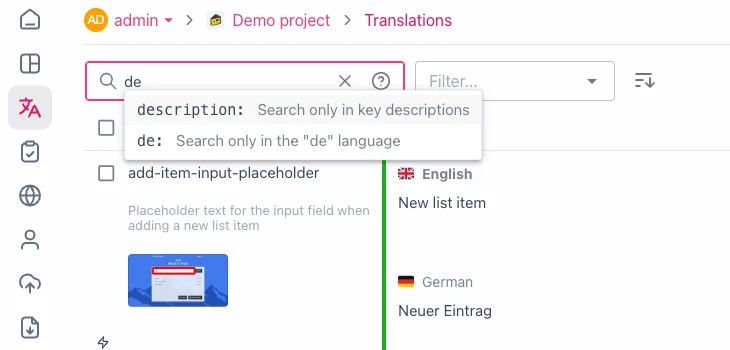
Scope your search to a single field
Start typing in the search field and Tolgee suggests the available qualifiers. Pick one, or type it yourself, and everything after the colon is searched only in that field.
| Example | What it searches |
|---|---|
key:cart | Only key names |
description:cart | Only key descriptions |
namespace:web | Only namespaces |
translation:cart | Translation texts in the displayed languages and the project's base language |
de:Warenkorb | Only translations in one language, using its language tag |
Terms without a qualifier keep the default behavior and search across all fields, so you can freely mix both. For example, description:cart checkout finds keys whose description contains "cart" and where "checkout" appears anywhere.
When you search in a specific language, the filter applies even when that language is not among the currently displayed columns. If you already have language columns selected, the matched text itself is only shown when you add the searched language to the displayed columns. The search never changes your saved column selection.
The set of recognized qualifiers can grow over time. Language tags made of letters, digits, _, @ and - act as qualifiers too, and the reserved qualifiers above take precedence over an identically named language tag. To reach any language unambiguously, use the canonical form translation:languageTag,term, for example translation:de,Warenkorb. To search for a literal text that looks like a qualifier, wrap it in quotes, for example "key:foo".
Match the beginning, end, or whole value
Use * as a wildcard to anchor your search, or = to match the whole value. This is handy when your keys follow naming conventions, or when one key name is part of other key names.
| Example | What it matches |
|---|---|
key:cart* | Key names starting with "cart" |
key:*_title | Key names ending with "_title" |
key:cart*title | Key names starting with "cart" and ending with "title" |
key:=cart.title | Exactly the key "cart.title", not "my.cart.title" |
Without a wildcard or =, the term matches anywhere inside the value. A few more rules apply to scoped terms.
- Matching is always case-insensitive.
key:=Cart.Titlefindscart.title. *still works after=.key:=cart*is the same askey:cart*.- To find a value that itself starts with
=, wrap it in wildcards.key:*=foo*finds the key=foo. %and_are matched literally. A literal*cannot be matched by a scoped term, so use a plain unqualified search for values that contain asterisks.- A scoped term may use at most 5 wildcards and 500 characters, and a query at most 20 terms per qualifier. Anything beyond these limits is searched as plain text instead.
Exclude matching keys
Prefix a qualifier with - to hide keys that match. For example, -description:legacy shows only keys whose description does not contain "legacy", including keys that have no description at all.
Search phrases with spaces
Wrap a qualifier value in quotes to search for a phrase. For example, description:"terms of service" finds descriptions containing the whole phrase. Quotes make spaces part of the term and protect a translation: value that happens to start with a language tag and a comma. The * character still acts as a wildcard inside quotes. Plain text without a qualifier needs no quotes, it is searched as typed, including any quote characters, though whitespace between terms is normalized when the query mixes qualifiers and plain text.
Review a terminology change
Imagine your team renames a product term and updates it in hundreds of key descriptions, while the keys themselves must stay unchanged. A plain search for the old term returns a mix of key names, translations, and descriptions, so you cannot tell whether the descriptions are fully cleaned up.
With scoped search, type description:oldterm. The result is exactly the list of descriptions still containing the old term. When the list is empty, the terminology change is complete. Use -description:oldterm to run the check the other way around and see everything already migrated.
Get help directly in the app
Click the help icon inside the search field to open a quick reference of all qualifiers with examples.
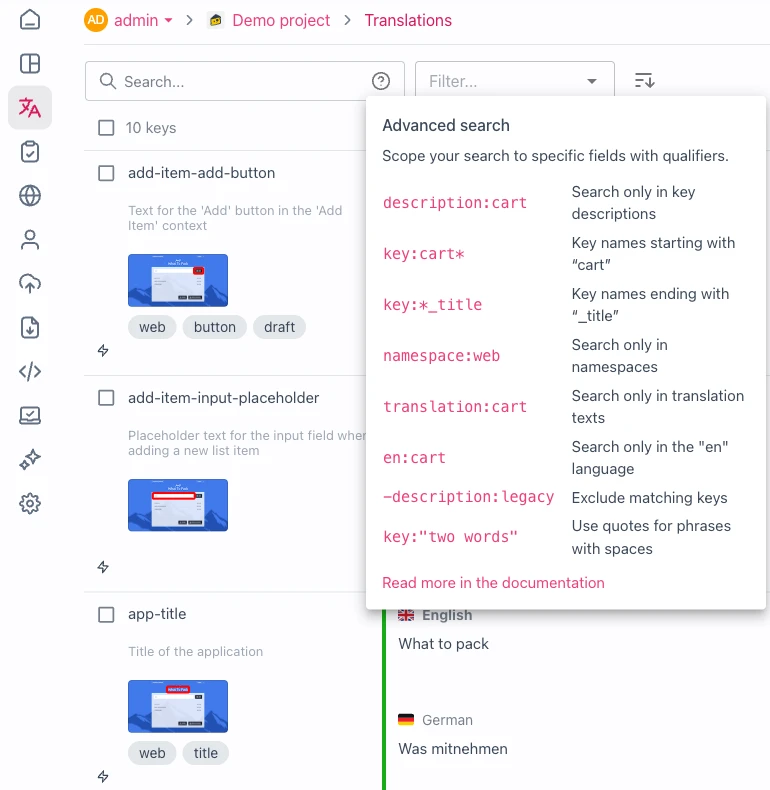
Use scoped search via the API
The search field syntax is a convenience of the web application. If you integrate with the API, the same functionality is available as query parameters of the translations endpoint, such as filterKeyPattern, filterDescriptionPattern, filterNamespacePattern, and filterTranslationPattern. Each one has a negated variant that excludes matching keys, for example filterNoKeyPattern. The parameters accept the same * wildcard and = exact-match syntax and can be repeated to combine conditions.