Manage Translation Memories
Translation memory management in Tolgee lets your organization keep one or more shared memories (collections of translations your team has already done) and reuse them across every project that needs to follow the same wording. Instead of every translator translating the same phrase from scratch, your team translates it once and Tolgee surfaces it everywhere the same source text appears again.
Without shared memories, the same phrases keep getting re-translated across projects: a login screen string in one product, a button label in another, an error message in a third, all written by different people, each making slightly different choices. The result is inconsistent wording and wasted translator time.
This page covers managing translation memories: creating them, browsing entries, filling them, sharing them with projects, editing them, and deleting them. For how memories produce suggestions and auto-translate at runtime, see Translation Memory.
Every project gets its own project-only memory regardless of plan. Creating and managing shared memories needs the Translation Memory feature on your plan.
Translation memory types and structure
A translation memory is a collection of entries. Each entry pairs a base text (the source-language string) with one or more translations into other languages.
There are two kinds of translation memories.
A project-only memory is created automatically for every project. It always reflects the project's own translations: every translation saved in the project becomes a match in the memory, with no extra setup. You can also import TMX into it and add entries by hand on top of that.
A shared memory lives at the organization level. Multiple projects can read from and write to it, so a translation done once becomes available everywhere it's assigned. Its content comes from three sources, in any combination: manual entries, TMX imports, and translations saved in projects that have write access.
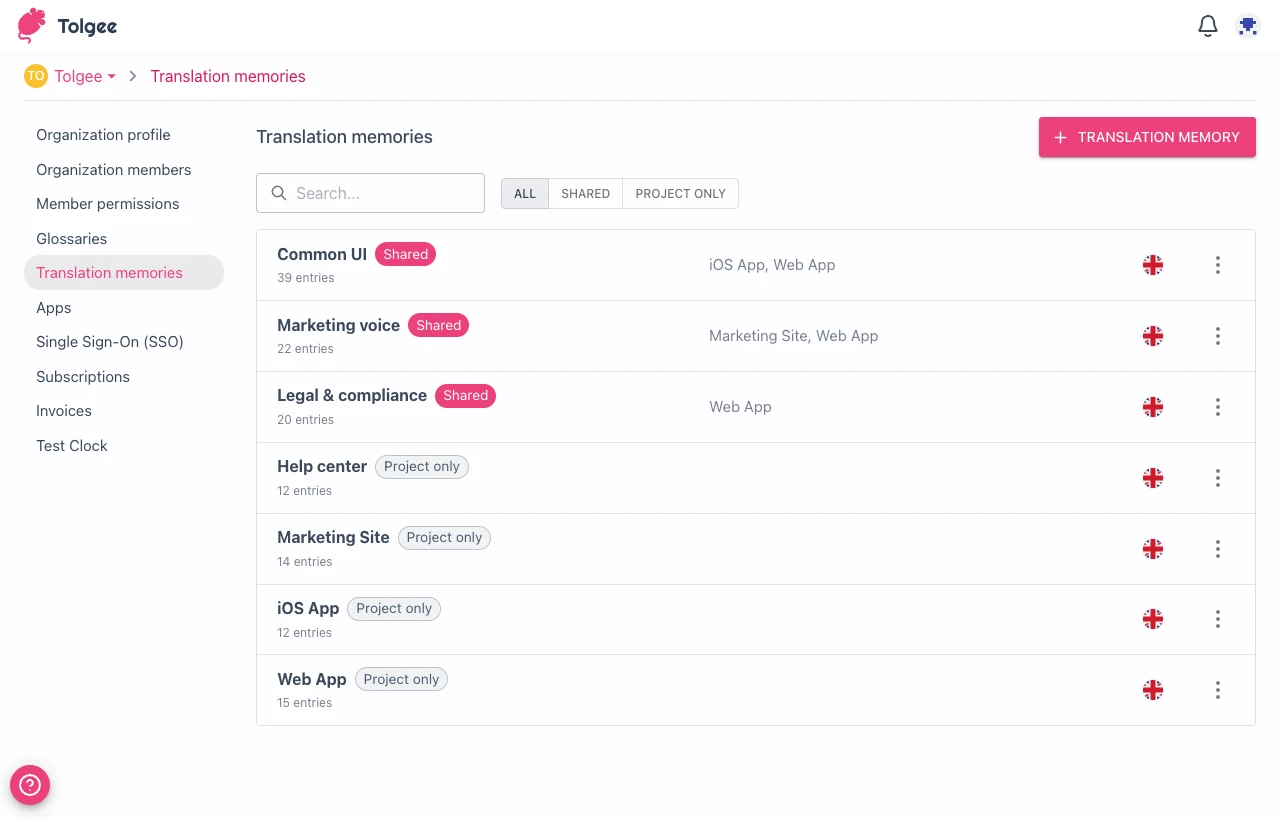
In the memory list, each row shows a Shared or Project only chip so you can tell them apart at a glance.
| Type | Reflects project translations | Manual + TMX entries | Multi-project |
|---|---|---|---|
Shared | Only when a project writes to it | Yes | Yes |
Project only | Always | Yes | No (one project) |
The translation memories list
The list of translation memories lives in organization settings.
- Open
Organization settings. - Select
Translation memoriesin the side menu.
The list page has a toolbar with a search field to find a memory by name, a filter to narrow the list by type (Shared or Project only), and a + Translation memory button to create a new one.
Every organization member can see the list. Creating, renaming, or deleting a memory (and managing entries inside one) requires the maintainer or owner role. See Permissions reference for the full table.
How do I create a translation memory?
Create a shared memory when you want a single source of approved translations that several projects should reuse. Project-only memories don't need to be created; every project has one automatically.
- On the translation memories list, click
+ Translation memory. - Enter a
Namethat describes its scope (for example,Marketing copyoriOS app). - Pick a
Base language. Every project assigned to this memory must use the same base language. - Set a
Default penalty(0–100%). The penalty is subtracted from match scores when suggestions from this memory show in the editor. See Penalty for details. - Optionally toggle
Only accept reviewed translationsto gate writes (see Control which translations enter the memory). - Optionally add the projects this memory should cover, with read or write access and a per-project penalty.
- Click
Create.
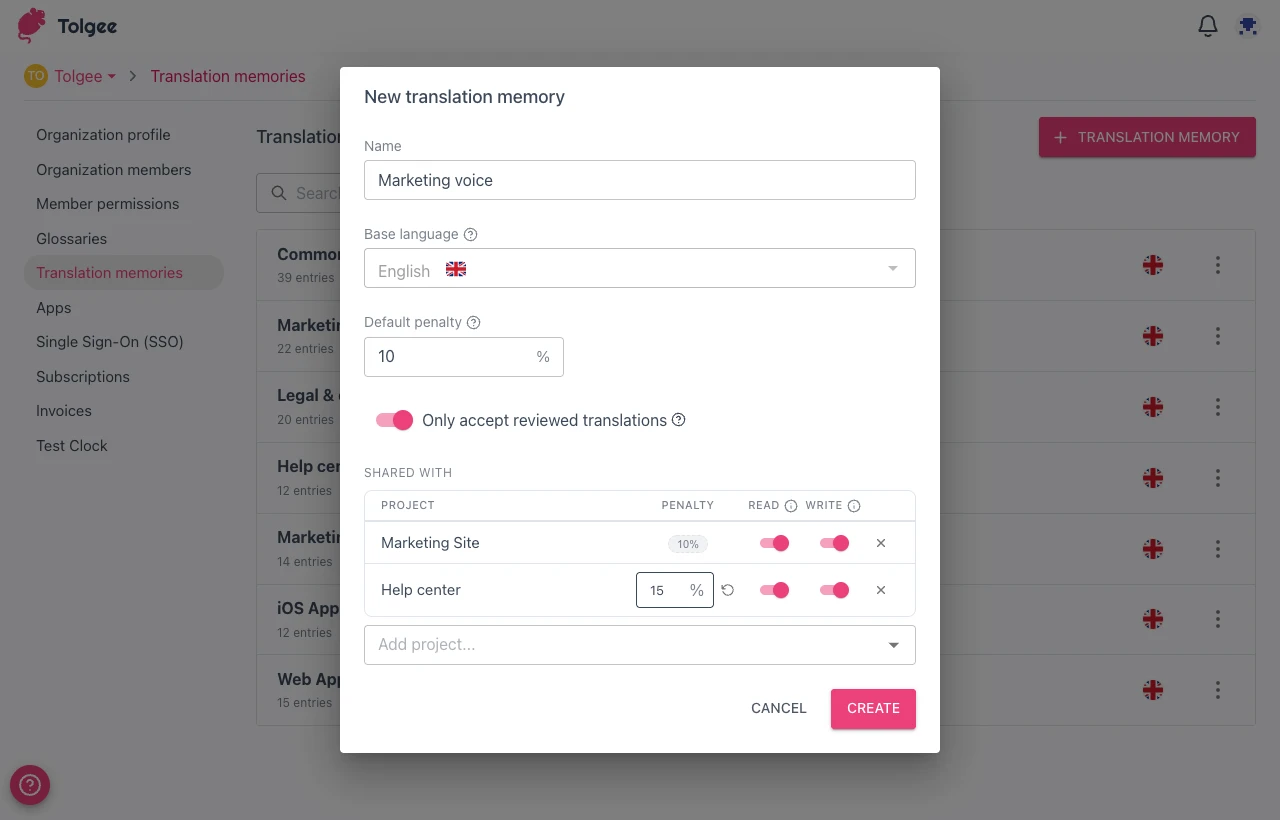
The base language is locked once any project is assigned. If you need to change it later, disconnect every project first.
Creating a shared memory requires the maintainer or owner role.
Browse entries inside a memory
Click a memory's row in the list to open its entries view. The view shows every stored translation, grouped by source text.
The toolbar above the entries lets you:
- Open settings with the gear icon
- Search by source or target text in the search field.
- Switch layouts:
- One row per entry: compact grid that shows every language in a single row.
- Stack languages vertically: one row per language, useful when entries have many translations.
- Filter by language with the language picker.
- Import TMX with the cloud-upload icon (see Import from file).
- Export TMX with the file-export icon.
- Add an entry with the
+ Entrybutton (see Add manually).
How do I fill a translation memory?
You have three ways to populate a memory.
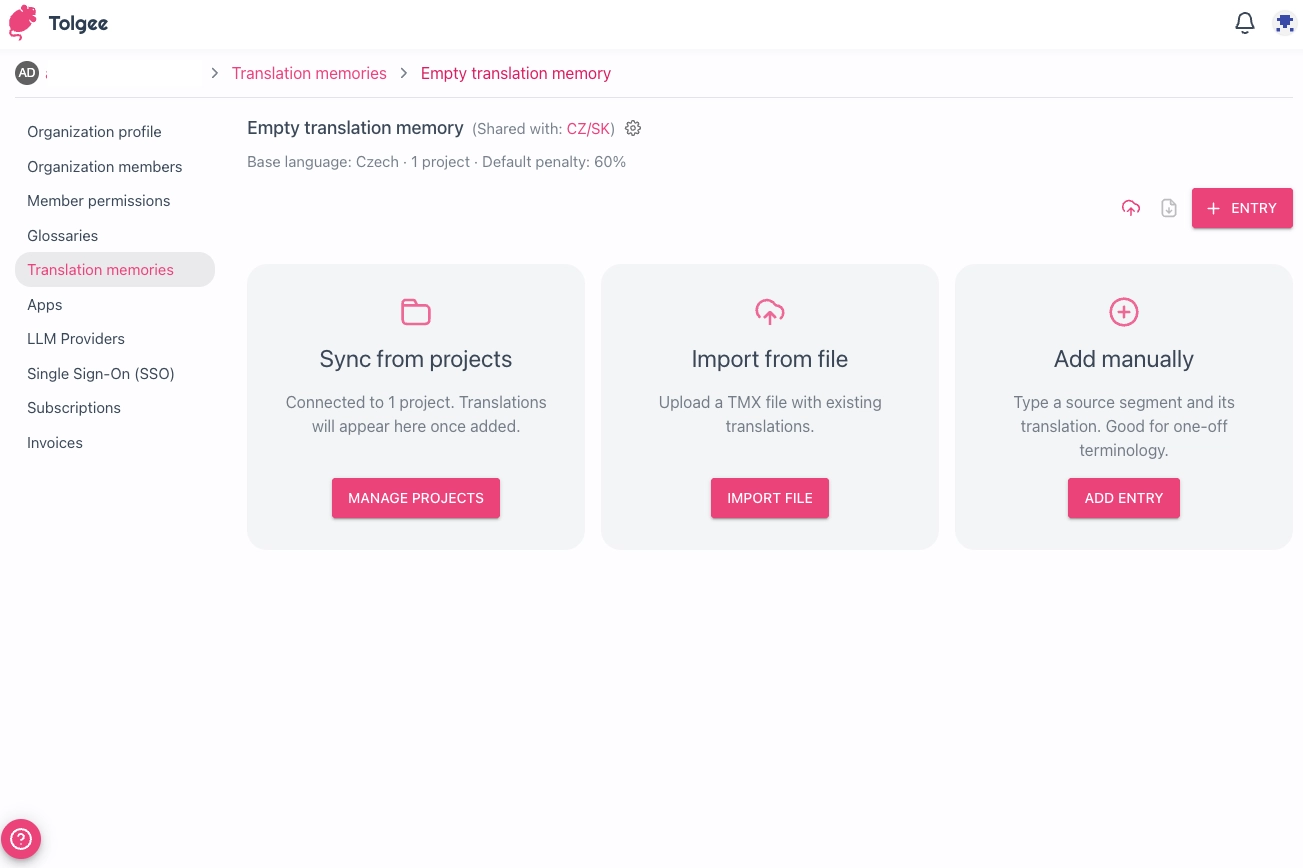
Sync from projects
Available on shared memories only.
When a project has write access to a shared translation memory, every translation saved in that project is automatically added to the memory as a new entry, indexed by its base text (the source-language string). Any other project assigned to the same memory with read access will then see those entries as suggestions while translating. If the base text is an exact match, Auto-translate from memory can apply the saved translation.
No extra setup is required. Once you assign a project to a shared memory with write access, new entries are added automatically as translators save their work.
To set up assignments, open the memory's settings and add a project with Write enabled. See more in Assign projects.
Import from file
Importing TMX is the fastest way to seed a memory with translations you already have.
- Open the memory you want to import into.
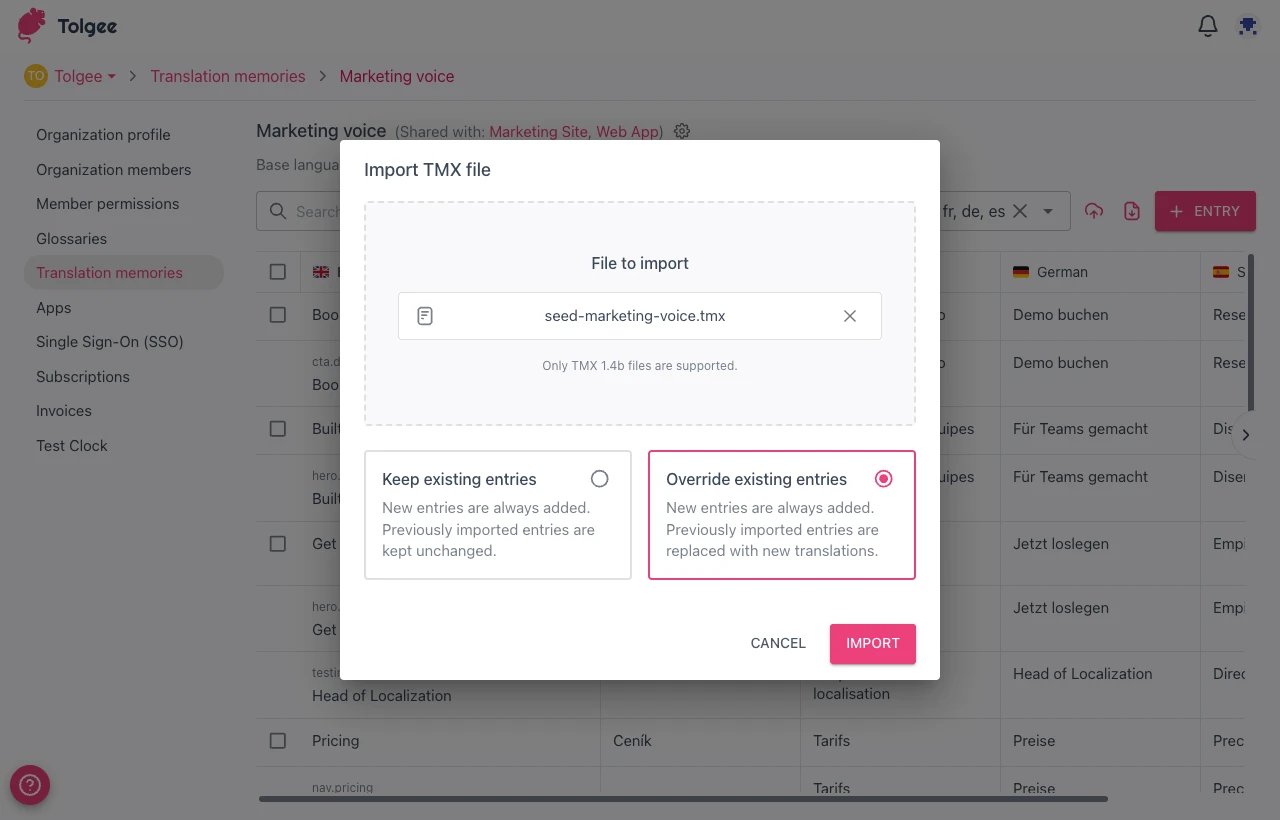
- Click the cloud-upload icon in the toolbar.
- Drop a
.tmxfile into the upload area, or click to browse. - If the memory already has entries, choose how to handle conflicts:
Keep existing entries: new entries are added, previously imported entries are kept unchangedOverride existing entries: new entries are added, previously imported entries are replaced with the new translations
- Click
Import.
Only TMX 1.4b files are supported. Once the import finishes, a summary shows how many entries were created, updated, or skipped.
On import, Tolgee uses the memory's configured base language as the source language regardless of the TMX srclang attribute. Any <tu> element that does not contain a <tuv> in the memory's base language is skipped.
Add manually
- Click the
+ Entryin the toolbar. - Type the source text in the base language row.
- Use the language picker in the dialog header to choose which target languages get a translation input. Toggling a language on adds its input, toggling it off removes the input.
- Type translations in any of the inputs.
- Click
Create.
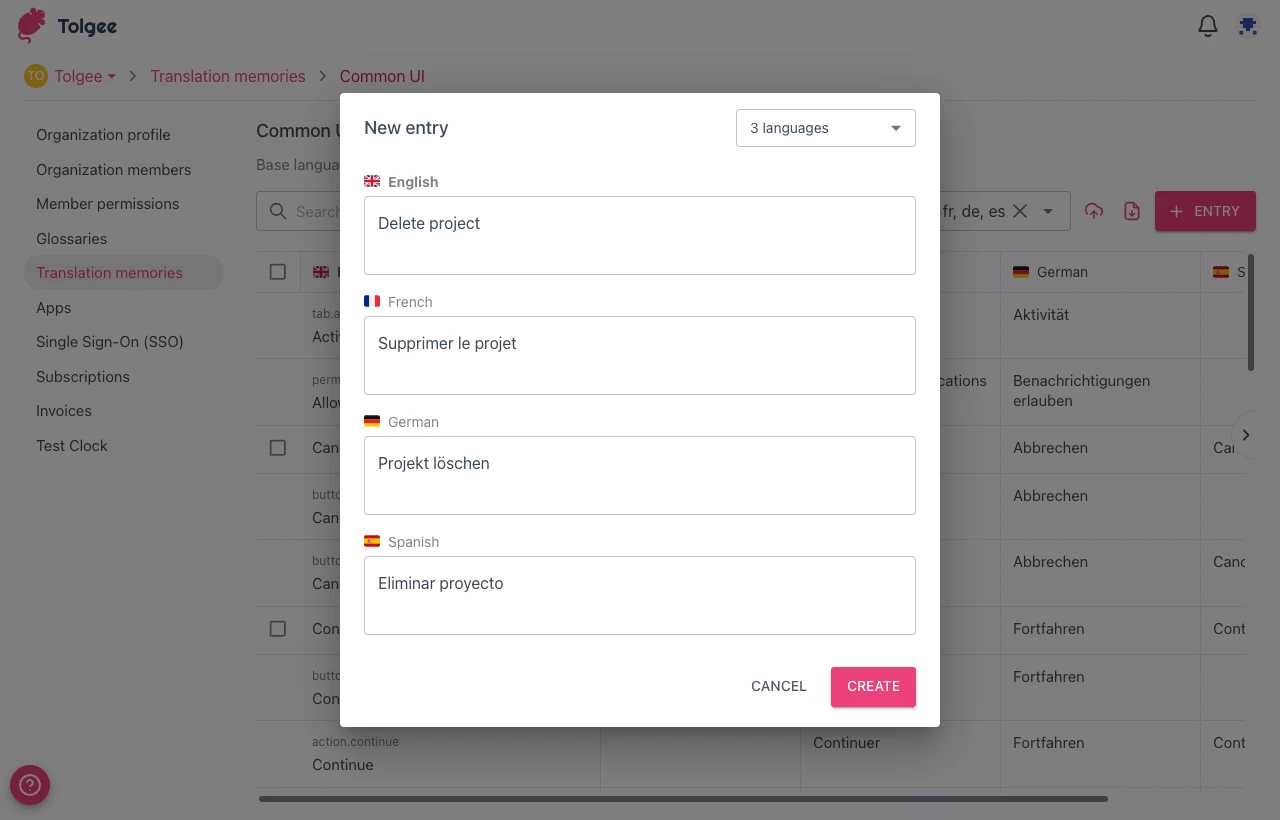
Adding entries requires the maintainer or owner role.
Edit entries
Once a memory exists, you can edit individual entries.
Edit an entry. Click any cell in an entry's row to edit a single translation in place. The cell becomes an input; type the new value and click away to save.
Delete entries. Select entries with the row checkboxes and use the Delete action in the batch toolbar that appears at the top.
Only entries added manually or imported from a TMX file can be edited or deleted here. Entries synced from projects (added when a project with write access saves a translation) are read-only in the memory view. To change them, edit the translation in the source project.
Editing entries and memory settings requires the maintainer or owner role.
How do I share a translation memory with projects?
Sharing settings controls which projects read from the memory, which write back to it, and which translations are allowed into the memory at all.
Assign projects
Assigning a memory to a project lets translators see suggestions from that memory in the editor and, if write access is enabled, lets the project contribute new translations back to the memory. Assignments are managed from the memory's settings.
- Open the memory's settings.
- In the
Shared withsection, add a project, or click the remove icon on a row to detach one.
Each row in the Shared with table has these columns:
- Penalty: overrides the memory's default penalty for this project
- Read: when on, suggestions from this memory show in the editor for this project; auto-translate may also use it
- Write: when on, translations saved in this project are written into the memory
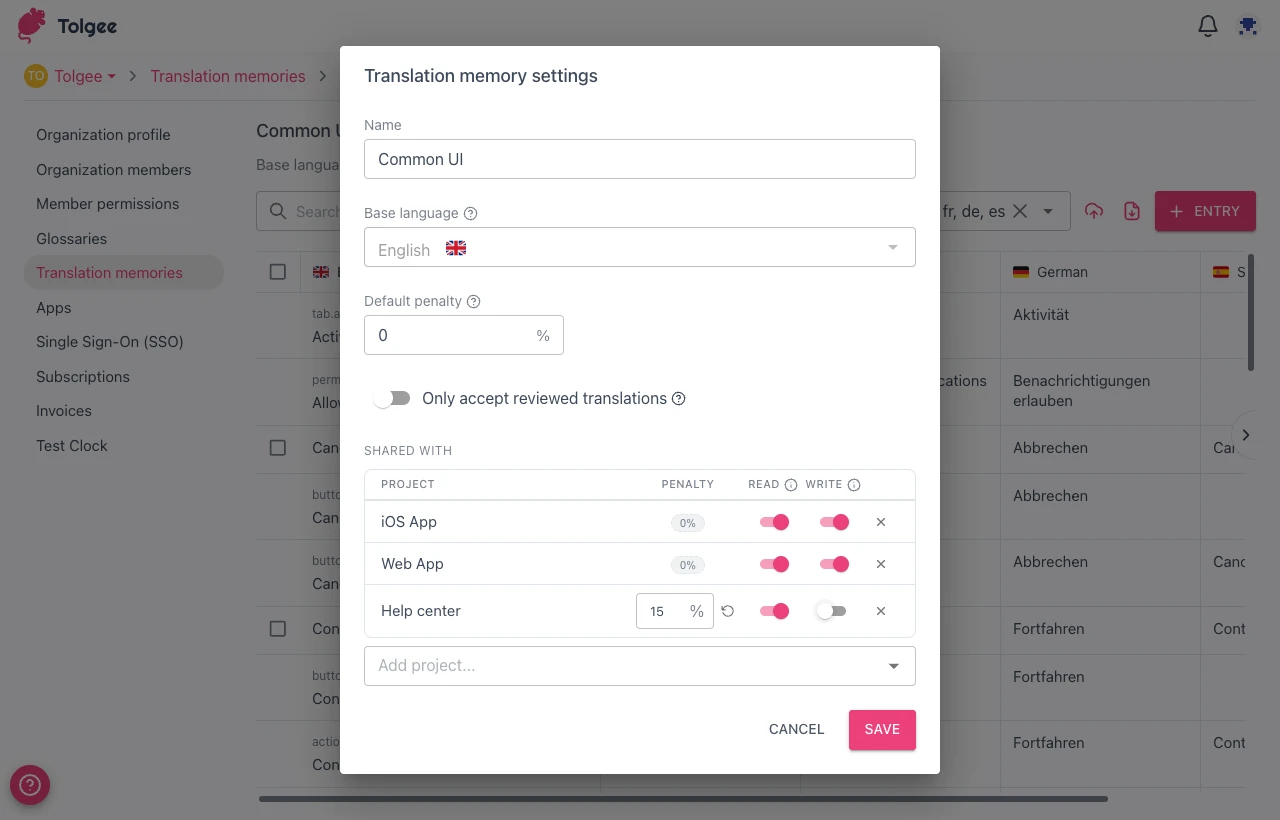
You can only assign projects that use the same base language as the memory. Projects with a different base language are hidden from the picker. The TM base language cannot be changed while any project is assigned to the memory. To change it, disconnect every project first.
Picking which memories a project uses (and toggling its read/write access and priority) is done by anyone with the project's Edit role; it doesn't require the organization maintainer role. The per-project penalty is set from the memory's settings dialog (org-side), which does require the maintainer or owner role.
Control which translations enter the memory
The Only accept reviewed translations switch controls when a translation flows from a project into a shared memory.
When the switch is off (default), every saved translation is written to the memory, including translations still in progress. This builds the memory faster but mixes draft and final wording.
When the switch is on, only translations marked Reviewed are written. If a previously reviewed translation is later un-reviewed, the matching entry is removed from the memory. The rule applies only to sync from projects — manual entries and TMX imports go in regardless of the switch.
You can change the switch at any time on both shared and project-only memories. Turning it on removes entries that came from project translations not currently in Reviewed state. Manual entries and TMX imports stay because they bypass the rule.
Penalty
A penalty (0–100%) lowers the match score of every suggestion from a memory before it's ranked in the editor, so a higher penalty pushes its suggestions further down. Set one when you want a memory to compete only if its raw similarity is much higher. For example, a draft memory with a 20% penalty only beats a high-quality memory when its similarity is roughly 20% higher.
Any non-zero penalty also disables auto-translate from memory for that memory. Its suggestions still appear in the editor, but auto-translate and pre-translate skip the memory entirely.
You can set a penalty in two places:
- Default penalty: configured on the memory itself when you create it. Applies to every project unless overridden.
- Per-project penalty: configured in the
Shared withtable. Overrides the default penalty for that one project.
Penalty applies only to shared memories. Project-only memories don't have a penalty setting.
What an assigned project sees
Once a memory is assigned, translators in that project see matching translations as suggestions in the editor, with similarity scores, penalties applied, and the option to auto-translate when the source is an exact match. For how matches are surfaced and scored at runtime, see Translation Memory.
How do I delete a translation memory?
Deleting a shared memory permanently removes it and every entry it contains. The action cannot be undone, so you must confirm by typing the memory's name in upper case.
- Open the
Organization settings-->Translation memories. - Open the three-dot menu on the memory's row.
- Select
Delete. - Type the memory name in upper case to confirm.
Project-only memories cannot be deleted. They are always available in all projects.
Deleting a shared memory requires the maintainer or owner role.
Permissions reference
| What you want to do | Who can do it |
|---|---|
| See the list of memories | Anyone in the organization |
| Create, rename, or delete a shared memory | Organization owner or maintainer |
| Add, edit, or import entries in a shared memory | Organization owner or maintainer |
| Pick which memories a project uses, set their priority, read or write access | Anyone allowed to edit project settings |
Toggle Accept only reviewed translations on a project-only memory | Anyone allowed to edit project settings |
TMX format reference
Tolgee imports and exports TMX 1.4b. Other TMX revisions are not supported.
Example
A TMX file Tolgee can import:
<?xml version="1.0" encoding="UTF-8"?>
<tmx version="1.4">
  <header
    creationtool="Tolgee"
    creationtoolversion="1.0"
    datatype="PlainText"
    segtype="sentence"
    srclang="en" />
  <body>
    <tu tuid="welcome-message">
      <tuv xml:lang="en"><seg>Welcome back, {name}.</seg></tuv>
      <tuv xml:lang="de"><seg>Willkommen zurück, {name}.</seg></tuv>
      <tuv xml:lang="cs"><seg>Vítej zpět, {name}.</seg></tuv>
    </tu>
    <tu>
      <tuv xml:lang="en"><seg>Save changes</seg></tuv>
      <tuv xml:lang="de"><seg>Änderungen speichern</seg></tuv>
    </tu>
  </body>
</tmx>
What Tolgee reads on import
For each <tu>:
- The
<tuv>whose language matches the memory's base language becomes the source text. All other<tuv>elements become target translations, indexed by theirxml:lang. - A
<tu>with no<tuv>in the memory's base language is dropped. - The optional
tuidattribute is preserved and reused on re-export, so round-tripping a TMX keeps the same IDs.
For each <tuv>:
- The language tag is read from
xml:lang(preferred) or a barelangattribute. Matching against the memory's base language is case-insensitive. - The text inside
<seg>becomes the translation, trimmed of leading and trailing whitespace. - Inline TMX markup inside
<seg>(<ph>,<bpt>,<ept>,<it>, etc.) is not preserved — only the text content is kept.
What's ignored:
<header srclang>is ignored entirely. The memory's configured base language is authoritative — this avoids mis-importing TMX files that declare a different source language than the TM you're importing into.- All other
<header>attributes (creationtool,creationdate,o-tmf, etc.). <note>,<prop>, and other non-segment metadata elements.
What Tolgee writes on export
Exports follow the same shape as the example above:
- Encoding is UTF-8.
<header srclang>is set to the memory's base language.- Each entry becomes one
<tu>. The source-language<tuv>is written first, followed by every target translation. tuidvalues preserved from an earlier import are written back; entries without one get a sequential number.
Limits
Each source or target segment can be at most 10,000 characters. On import:
- A
<tu>whose source segment exceeds the limit is dropped entirely. - An oversize target on an otherwise valid
<tu>is dropped, but other targets in the same<tu>are kept.
The import summary reports how many segments were skipped for being too long.
FAQ
When to use a shared translation memory?
Create a shared memory when you want a single source of approved translations that several projects should reuse.
When to use a project-only translation memory?
Project-only translation memories are created automatically for each project and you do not need to create them yourself.
How do I rename a translation memory?
Open the memory and click the gear icon in the toolbar to access its settings. Change the Name field and save. Renaming a memory does not affect projects assigned to it, the URL of the memory, or any of its entries.
Can I import a TMX from another translation tool?
Yes. Tolgee imports the standard TMX 1.4b format, which is supported as an export option by most translation tools. See Import from file for the steps, and the TMX format reference for which parts of the file Tolgee uses on import.
Will deleting an entry from a translation memory affect existing translations in my projects?
No. Project translations and memory entries are stored independently. Deleting an entry removes only the suggestion the memory would show in the editor; it does not change any translation already saved in a project.
Can one project be connected to several shared memories?
Yes. A project can have any number of shared memories assigned to it. The editor merges matches from every assigned memory and shows them ranked by score after each memory's per-project penalty is applied. Set a different penalty for each memory if you want one to win ties over another.
What happens to my project-only memory if the Translation Memory feature is removed from my plan?
Nothing. Project-only memories work regardless of plan and are not deleted when the Translation Memory feature is disabled — only access to shared memories is affected. A project-only memory is removed only when its project is deleted.