Bulk Operations
Naming forty texts one row at a time is the slowest part of localizing a screen. Bulk operations do the same work on a whole selection at once, which turns an afternoon of typing into a couple of clicks.
Running an Operation
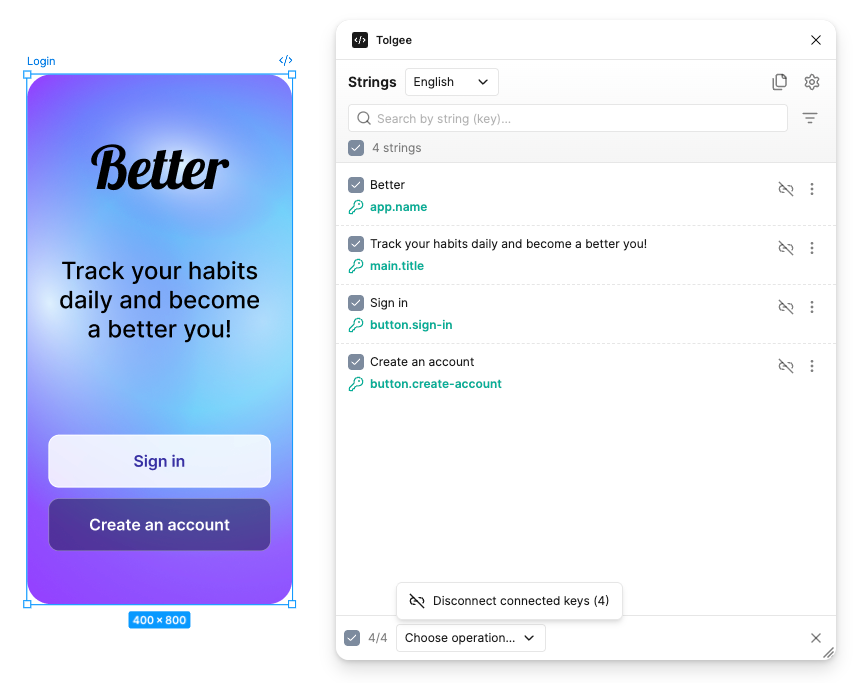
Select strings using the checkboxes on their rows, or use the checkbox in the action bar to select everything currently shown. The action bar at the bottom then replaces the Upload and Download buttons with a counter and an operations menu.
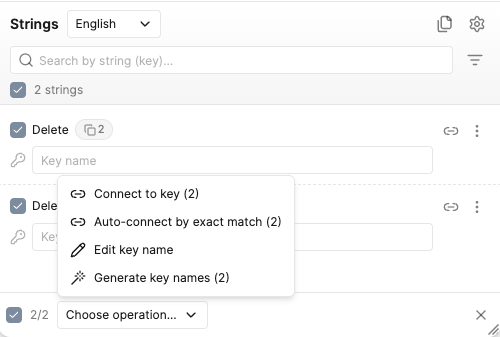
Open Choose operation… and pick what you want to do. Every operation shows in brackets how many strings it will affect, so you can check the number before running anything.
A connected string can only be disconnected. Its key and namespace are set in Tolgee and cannot be changed from the plugin. Every other operation acts on the unconnected part of your selection and skips the rest.
Filters and bulk operations work well together. Filter the list down to Not connected, select all, and generate names for exactly those strings. See searching and filtering.
Naming Keys
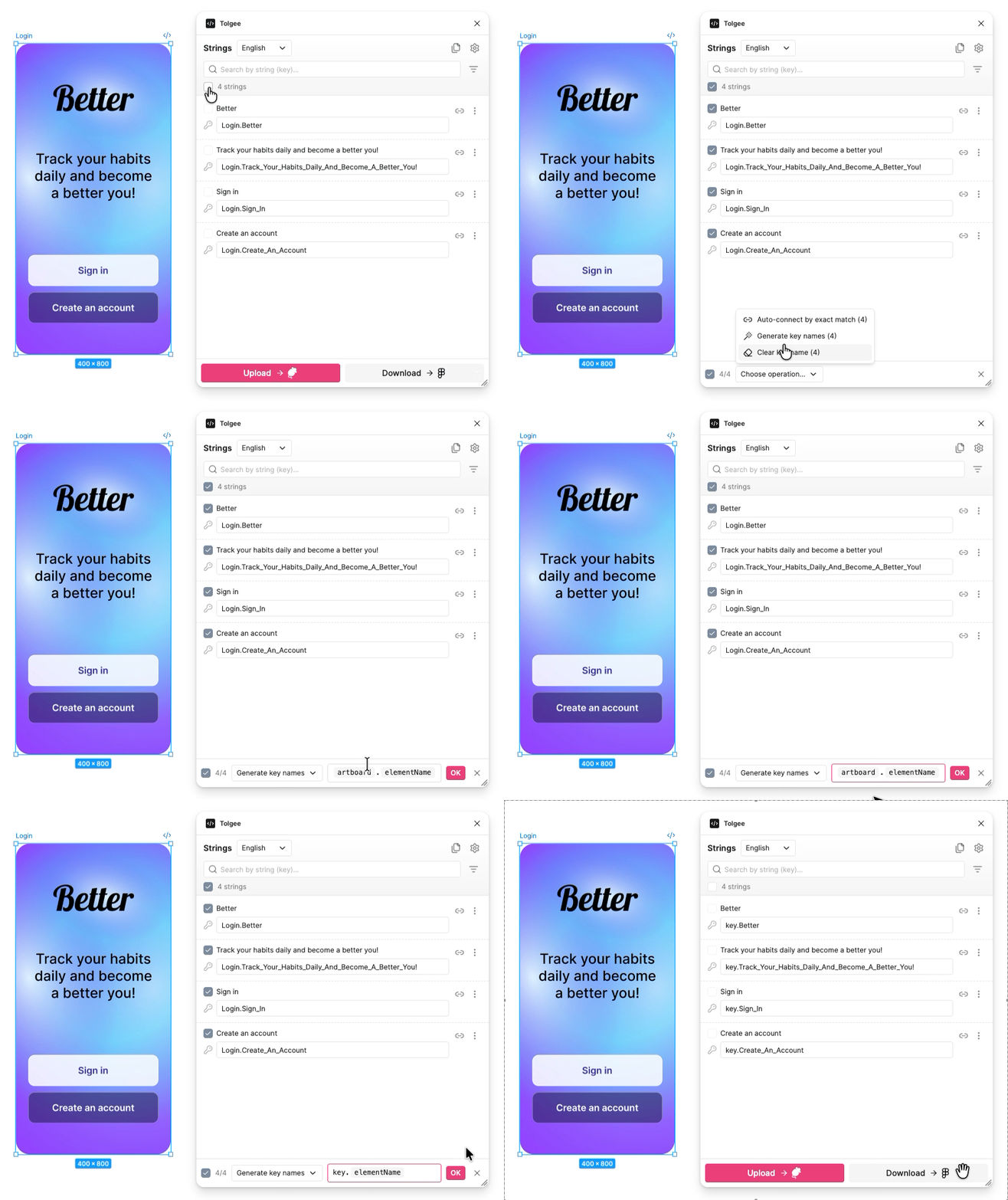
Generate key names
Fills in a name for every selected string, built from the Key format you defined in settings. This is the fastest way to start on a screen that has no keys yet.
Because names come from where each text sits in your design, the results are consistent in a way hand-typing rarely is. You can still edit any of them afterwards.
The format itself appears in the action bar when you run the operation, so you can change it for this one run without opening settings. Click OK to apply it.
Edit key name
Writes one key name across the whole selection. Use it when several texts genuinely are the same string, for example a Save button repeated across screens.
This is offered only when nothing in your selection is connected yet, because writing a key onto a connected row would disconnect it.
Clear key name
Empties the key field on the selected strings, so you can start over.
Connecting to Existing Keys
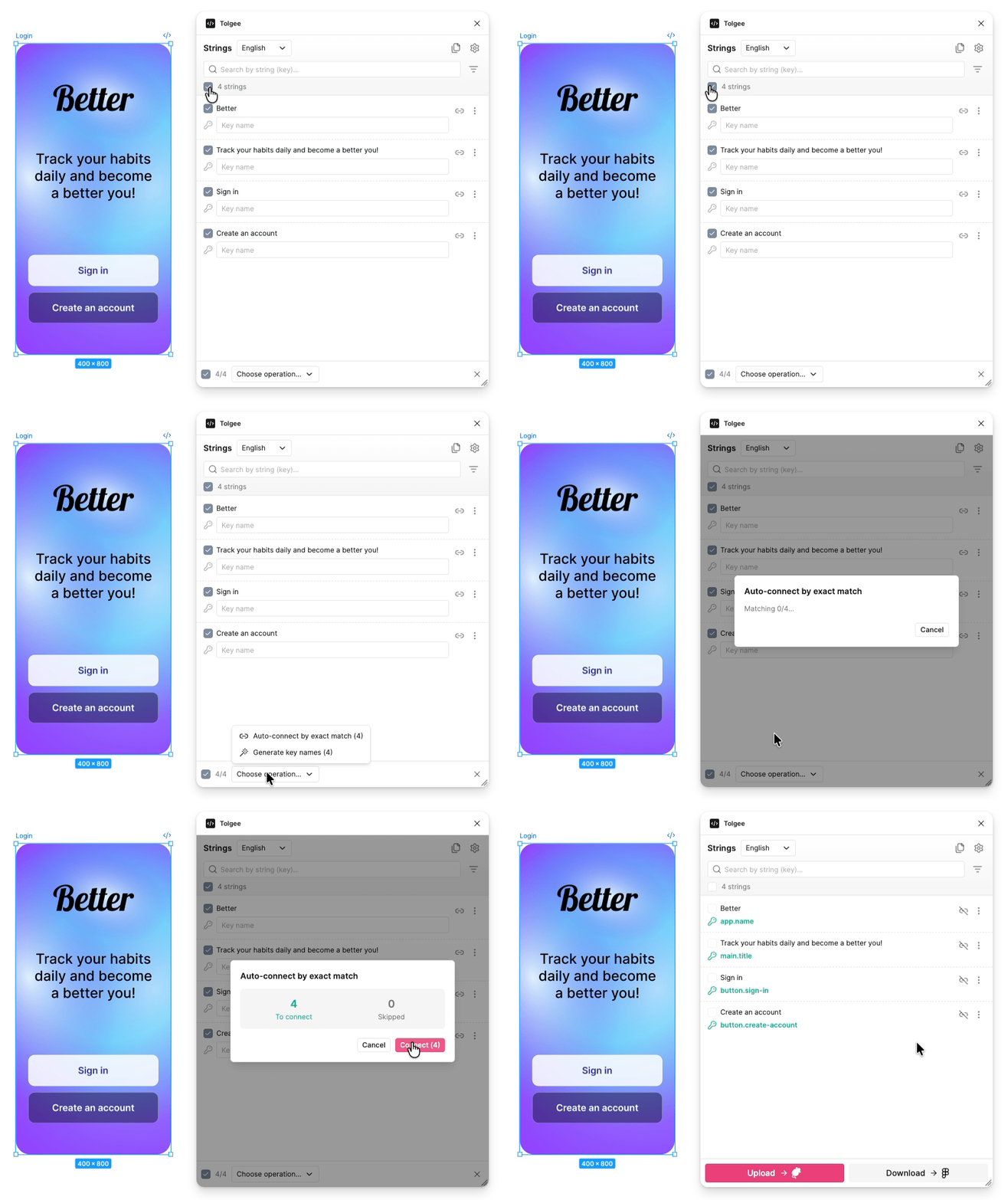
Auto-connect by exact match
Looks for a Tolgee key whose text exactly matches each selected string, and connects the two. This is the operation to reach for when a design was built from copy that already lives in Tolgee.
Nothing is applied straight away. The plugin searches, then shows you a preview with two numbers.
To connectis how many strings it found a single confident match forSkippedis how many it is leaving alone
Every skipped string is listed with the reason, so you can see what to do about it.
No exact match in Tolgeemeans there is nothing to connect to, so either create the key or connect it manuallySeveral keys match this text exactlymeans the plugin found more than one candidate and will not guess. OpenConnecton that row and pick the right one, where the exact match is shown at the top
Click Connect to apply the previewed matches, or Cancel to walk away with nothing changed.
When your project uses namespaces, you can narrow the search to one namespace before it runs.
Connect to key
Links every selected string to one single key. Use it when the same wording appears in several places and should share a translation.
This is offered when the unconnected strings in your selection all have the same text.
Disconnect connected keys
Removes the connection from every connected string in the selection. The texts stay on the canvas exactly as they are, they just stop being synced with Tolgee.
Organising
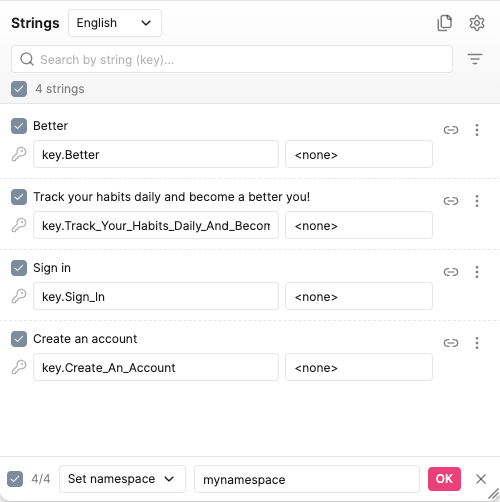
Set namespace
Applies one namespace to the selected strings that are not connected yet. Pick from the namespaces your project already uses, or type a new one. The field starts on the default you set in settings.
A connected key's namespace is set in Tolgee and cannot be changed here. Disconnect the string first if you need to move it.