Page Copies
Switching one design back and forth between languages makes it hard to compare them and impossible to show two at once. Page copies solve that by giving each version its own page in the same file, so you can put German next to Japanese and see which layout breaks first.
Creating a Copy
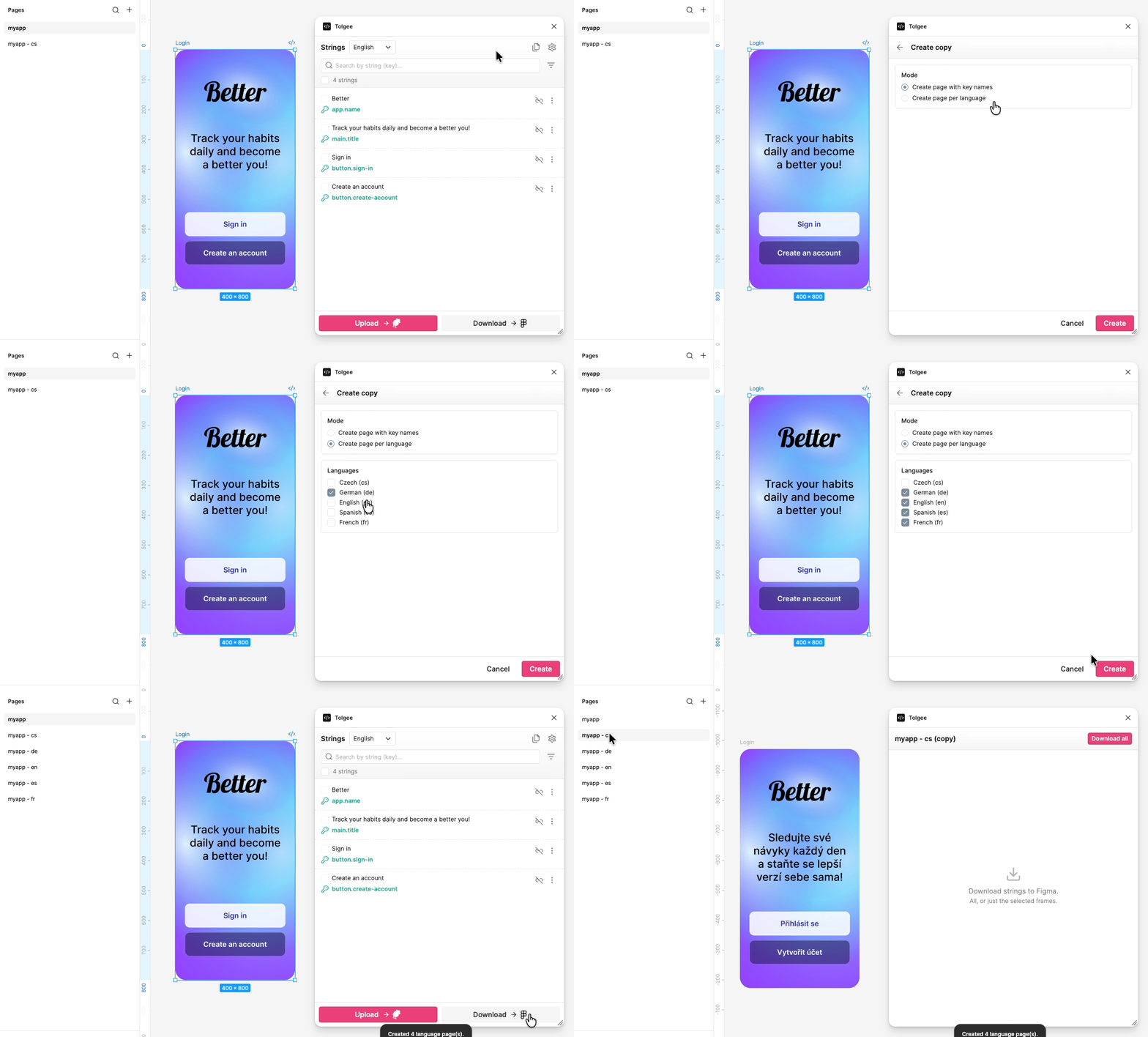
Click Create page copy in the plugin header and choose what kind you want.
Create page with key names replaces every text with its key name. Developers use these to see exactly which key belongs to which element, without having to click through the plugin.
Create page per language creates one page for each language you tick, with the texts replaced by their translations.
Click Create and the plugin adds the new pages to your file.
When your project uses branching, the branch is a setting of the whole file, while the language belongs to the page. A copy keeps its language, but follows the file's branch: the selector on a copy is read-only, and the branch is changed in Settings or from the main page.
A copy is a snapshot for reading, not a second place to work. Editing text on a copy does not send anything back to Tolgee, and a key-name page does not sync back at all.
Keeping a Copy Up to Date
When translations change on the platform, open the copy and click Download all to refresh every string on the page. To update only part of it, select those texts first and click Download.
Recreating a Copy
A copy reflects the page it was made from at the moment it was made. If you later connect new strings on the original page, or disconnect some, the copy no longer matches. Downloading cannot fix this on its own, because it only refreshes texts the copy already knows about.
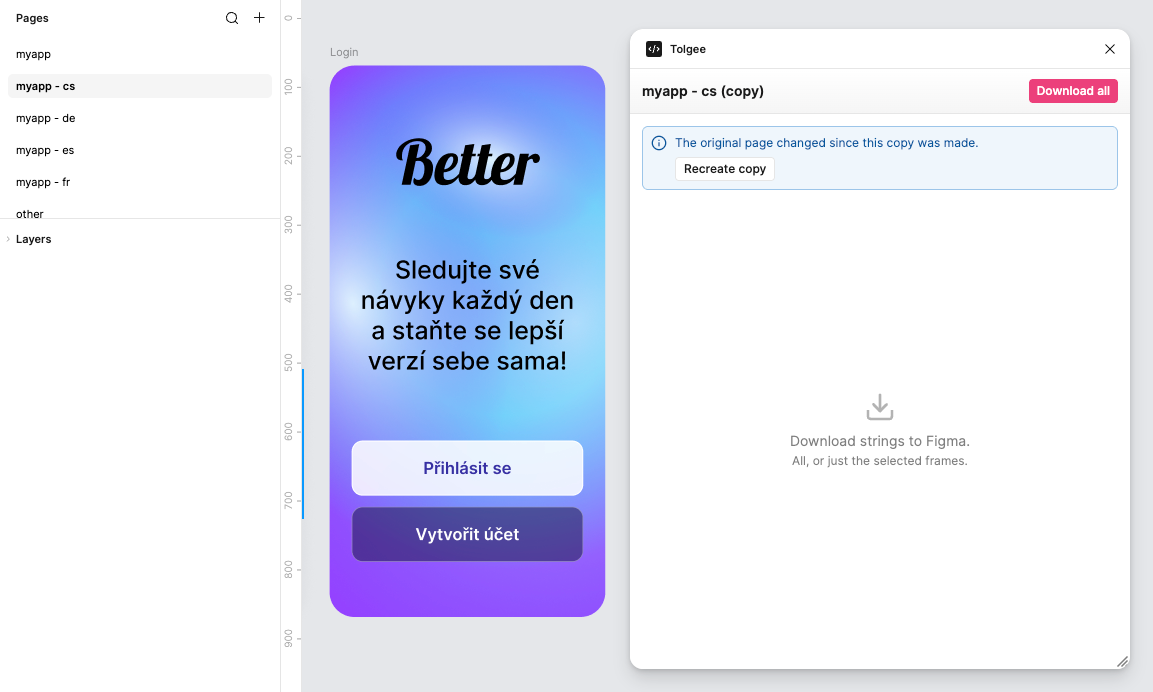
The plugin notices and shows a note at the top of the copy saying the original page has changed since the copy was made. Click Recreate copy to build it again from the current state of the original.
Copies cannot be created or recreated from Figma's Dev Mode, because building a page writes to the document. You can still open a copy there and read it.